

Add a custom source
Pick Custom
Pick the contract
/search and /read sit under, such as https://kb.example.com/xpander. Under Authentication, choose API key (enter the Header and the API key), Each person signs in (OAuth) (pick the Connection people sign in through), or None (the signed identity only).For MCP server, pick the server from the Skills registry and enter the names of its Search tool and Read tool (search and read by default).Name it
Give your system the identity values
Test the connection
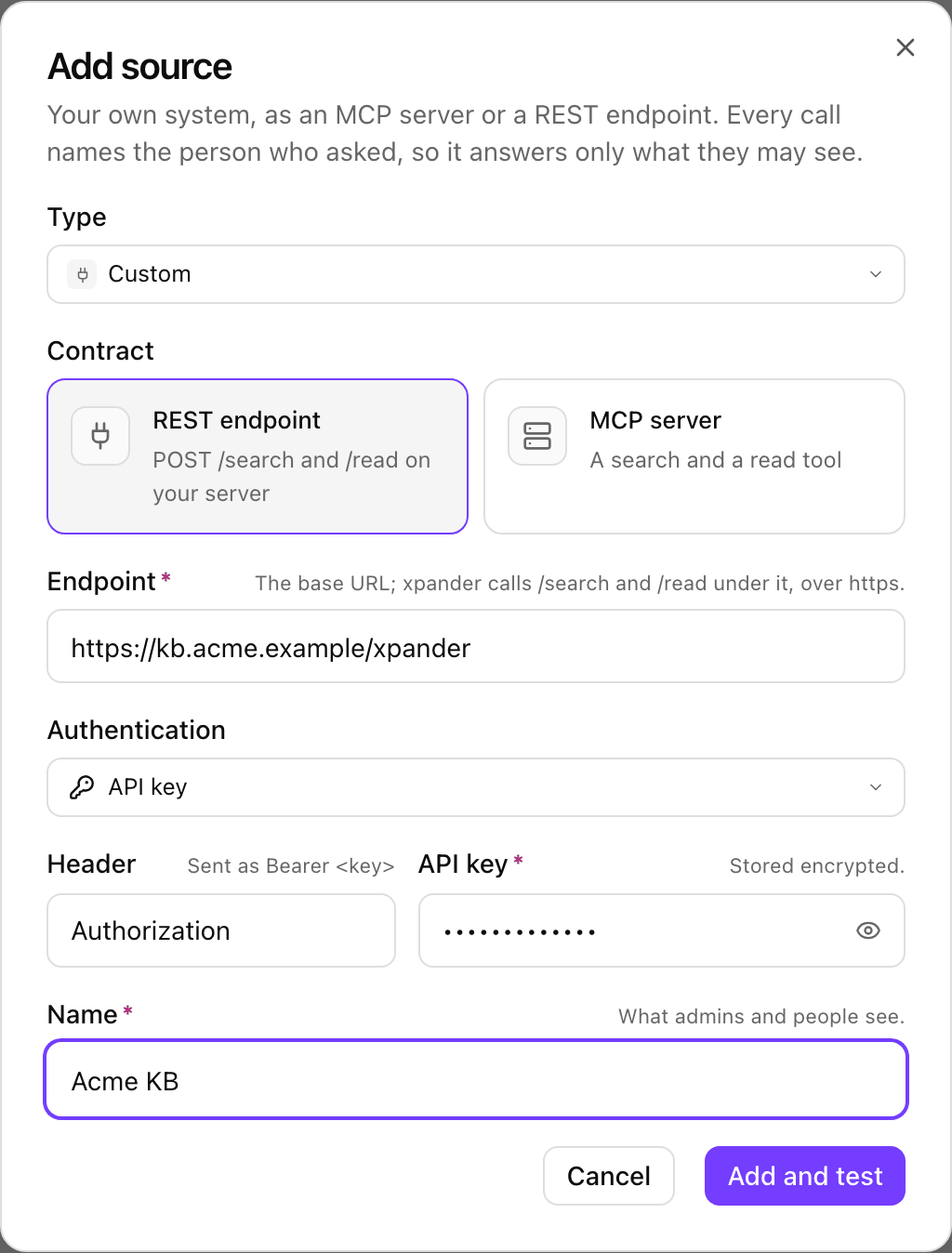
Add source with Custom and REST endpoint: the base URL, an API key in the Authorization header, and the name people see. Shown with sample data.
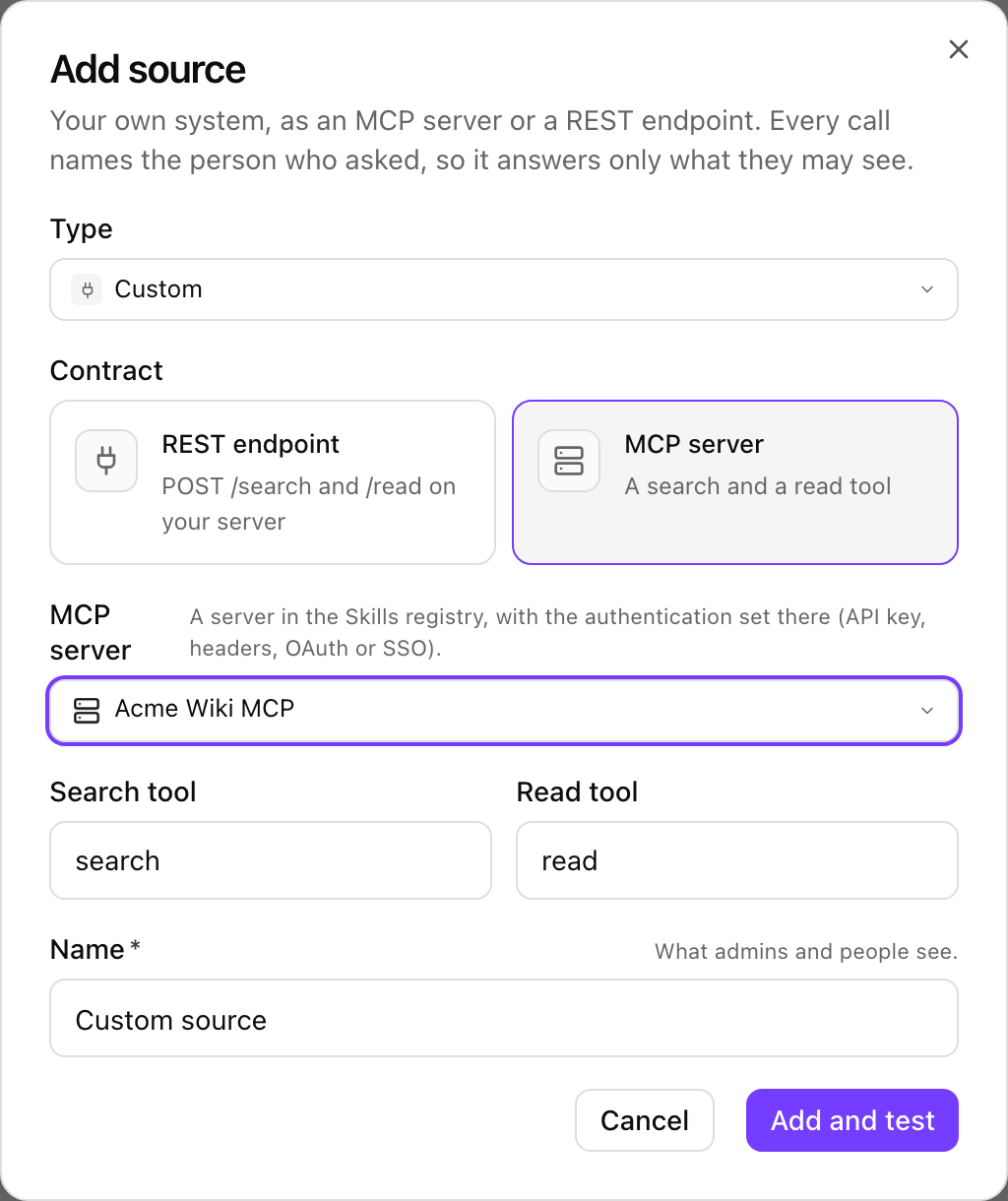
Custom over an MCP connector: an entry from the Skills registry and the names of its search and read functions. Shown with sample data.
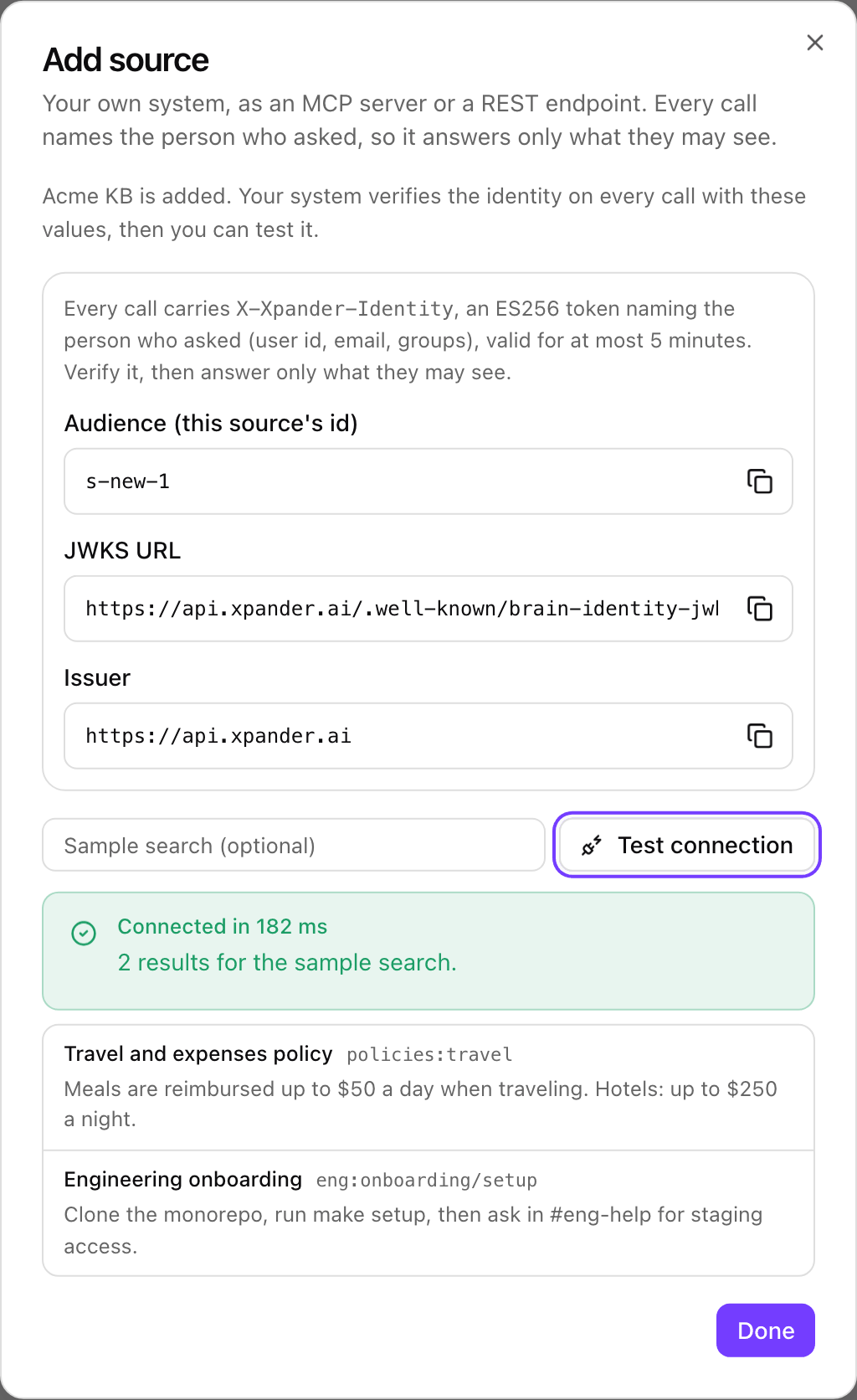
After Add and test: the values your system verifies, and a Test connection that found two items. Shown with sample data.
The REST contract
Your system answers twoPOST requests under the base URL. Both take and return JSON. The full OpenAPI 3.1 description is below.
Search
Read
text is plain text or Markdown; xpander keeps the first 200,000 characters. title, url, modified and path are optional.
Status codes
The identity token
Every call carriesX-Xpander-Identity: a JSON Web Token signed with ES256 by your xpander install. Its header names the signing key (kid) and has typ: xpander-brain-identity+jwt.
https://api.xpander.ai/.well-known/brain-identity-jwks.json on xpander cloud, and your own API host’s /.well-known/brain-identity-jwks.json on a self-hosted install. Cache the key set and fetch it again when a token names a kid you have not seen. Each install has its own signing key, and it is used for nothing but this token.
Verify the signature, aud, exp and iss on every call, then apply your own permissions with sub, email and groups.
A minimal REST source
A complete source in Python (FastAPI) that verifies the token withperson() above and filters by group:
uvicorn app:app behind your HTTPS proxy), use its base URL as the source’s Endpoint, and a person outside Finance never gets the forecast.
The MCP option
Pick an MCP server that is already in the Skills registry. xpander calls it over streamable HTTP:initialize, then tools/call on the Search tool with {"query": "...", "limit": 25, "scope": {...}} and on the Read tool with {"ref": "..."}.
The functions answer in the same shapes as the REST contract: the search answer is {"items": [...]} and the read answer is {"title", "text", "url", "modified"}. xpander reads structuredContent when the answer has it, and otherwise parses the text content as JSON; a read may also answer plain text, which becomes the item’s text. A call that answers isError counts as a failure.
The server’s authentication is the one set in the Skills registry: an API key, custom headers, each person’s OAuth sign-in (each person signs in once, from the source’s Connection tab or from Settings > Knowledge), or the person’s SSO token. Every call also carries X-Xpander-Identity, so the server can apply its own permissions even with a shared key. A server that supports only the older SSE transport cannot be used as a source.
Scope
A custom source cannot be browsed, so its scope takes typed places. On the card’s Scope tab, choose what to include or leave out and use Add by path:- A ref prefix, such as
wiki:eng/. It matches every ref that starts with it at a/or:boundary:wiki:eng/matcheswiki:eng/setup, notwiki:engineering. - A path, such as
/Engineering/Runbooks. It matches thepathyour system sends with each item. An item without apathis left out when the scope has a path rule.
Settings shared with every source
The source’s card has the same settings as the built-in sources: Sensitive (no cache), the cache time, the timeout, who can read it, and its entries in the access log. Test connection on the card’s Connection tab runs a sample search as you at any time. When the source uses each person’s sign-in, Disconnect on the Connection tab signs you out of it.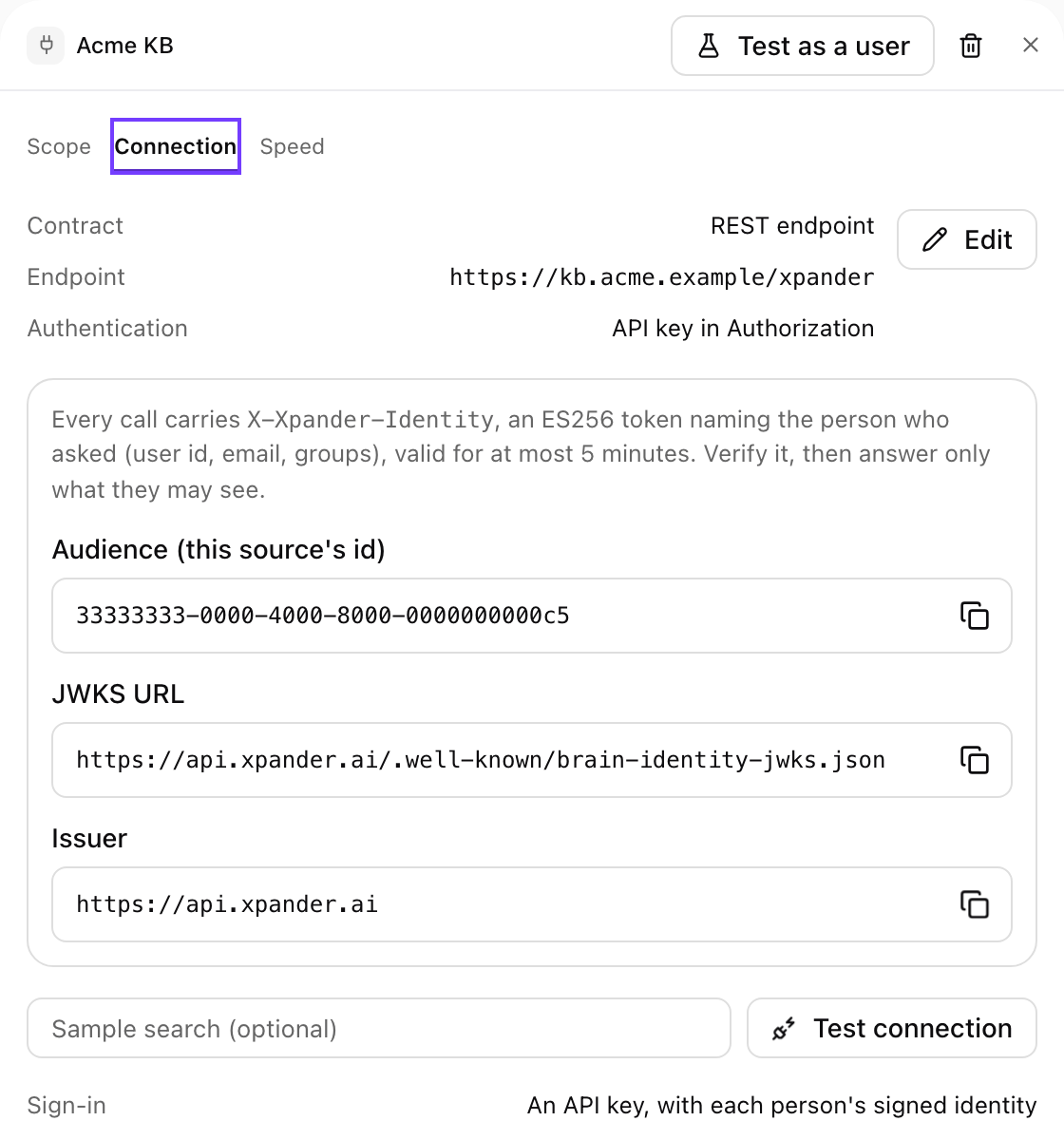
A custom source's Connection tab: the contract and endpoint, the values your system verifies, and Test connection. Shown with sample data.
Network rules
xpander calls a custom source from your install:- HTTPS only. On xpander cloud the endpoint must be reachable on the public internet; private, loopback and cloud metadata addresses are refused.
- Self-hosted installs may call endpoints inside your network over HTTPS. Plain
http://is accepted only when the install setsBRAIN_CUSTOM_SOURCES_ALLOW_HTTP=trueon agent-controller, and only for an address inside your network. Metadata addresses are never called. - No redirects to another host. A redirect to the same host with
307or308is followed; any other redirect fails the call. Use the final URL as the endpoint. - Size and time. A search answer may be up to 2 MB and a read answer up to 5 MB. A call that takes longer than the source’s timeout is dropped for that question.
- The calls do not go through an
HTTPS_PROXY.
Troubleshooting
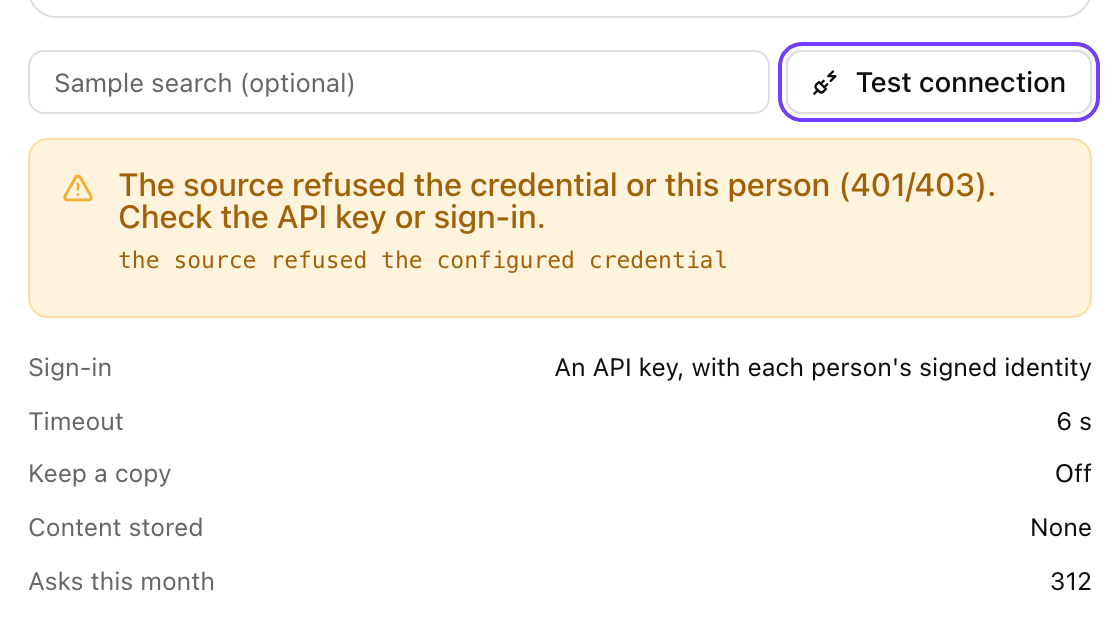
Test connection when the source refused the API key: what failed, and the source's own words. Shown with sample data.
aud compared with something other than the source’s id, or a clock more than 30 seconds off.
OpenAPI description
OpenAPI 3.1 for the REST contract
OpenAPI 3.1 for the REST contract