

Agents and conversations
The left column holds New chat, Agents (the agents shared with you, Omni the built-in agent, and New to assemble one), Workflows, Surfaces and Scheduled. Below them, Conversations are grouped under Today, Last week and Older, with Show all to expand a group. Filters narrow them by agent, by user (All users shows teammates’ conversations you have access to), Source (where the run started), Status and Date. Status includes Scheduled, for runs that have not happened yet. See all conversations opens the full list, with the same filters you set in the sidebar. While an agent works, Notify me on the status line tells you when it finishes. Pinned conversations are saved to your account, so they appear on every device you sign in on.A conversation
The header names the agent and the conversation, and shows who can see it: Only you, a group, or the organization, changed with Manage access. Several people can write in the same conversation; every message carries its author’s name and every action is recorded under the person who asked for it. The composer shows the harness and model the next message will run on, for exampleClaude Code · Fable 5.1, and the permission mode:
- Automatically approve runs every command the agent decides on. Only the agent’s gated commands wait for approval.
- Manually approve holds every shell command, file edit and web fetch for approval; reads, searches and skills that are not themselves gated run unheld.
Tasks and the execution log
Every run is recorded as a task. The task panel shows the execution log: a counter of steps and actions, then one row per action with its status and time, such asWebFetch, WebSearch, a skill call, a shell command or Task output. Failed steps are marked. A stop button ends the run. Opening a turn in the Session Manager shows its details: status, steps, the number of calls the agent made, and duration, the user message, the result with Export, and the execution log. Session Manager (the list icon in the top bar) lists every task for an agent, filtered by This agent, Users, Date, Status or Source, and searchable by title or id. See Tasks.
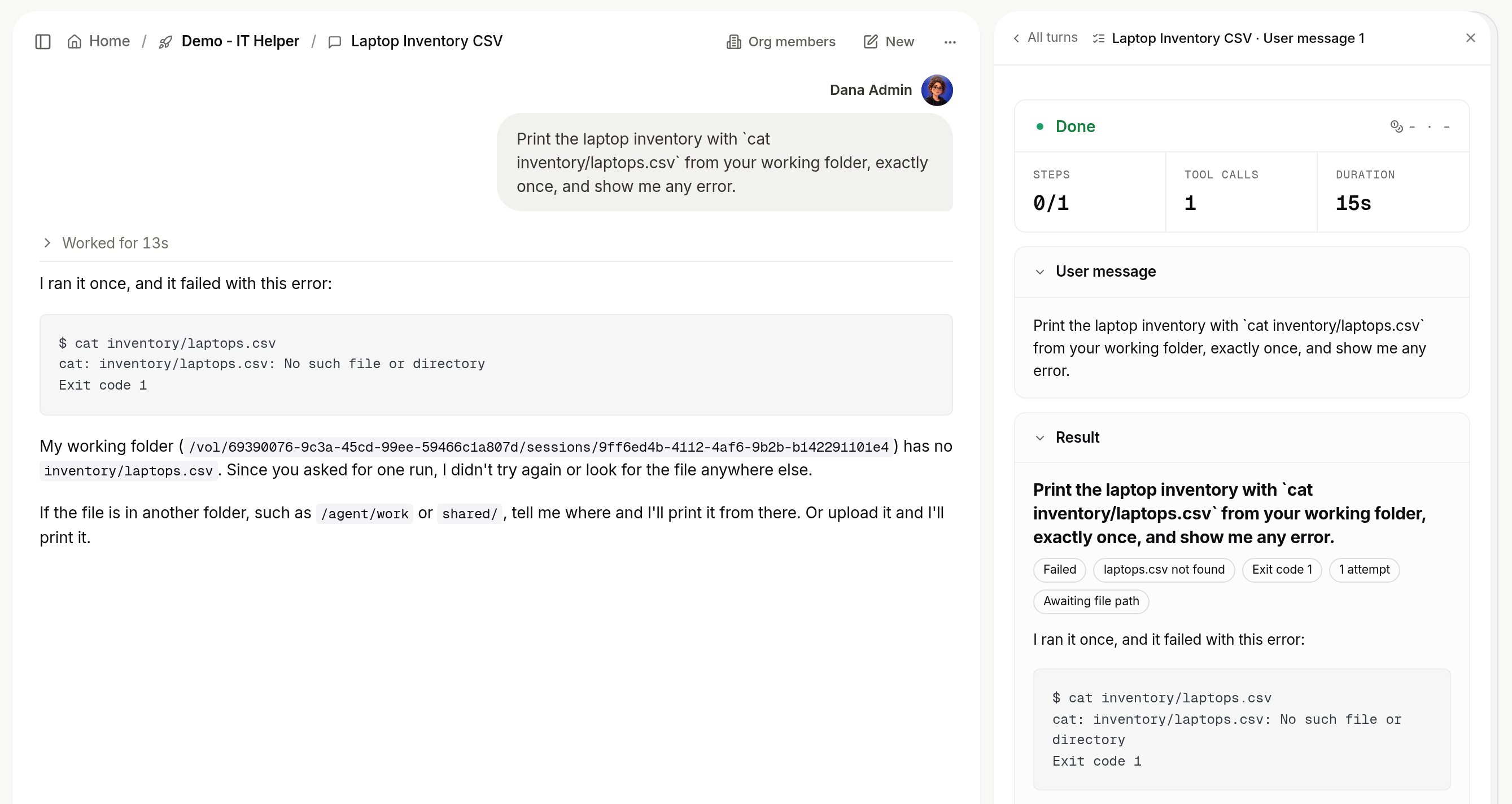
A turn opened in the Session Manager: status, steps, calls and duration, the user message and the result; the execution log follows below. Shown with sample data.
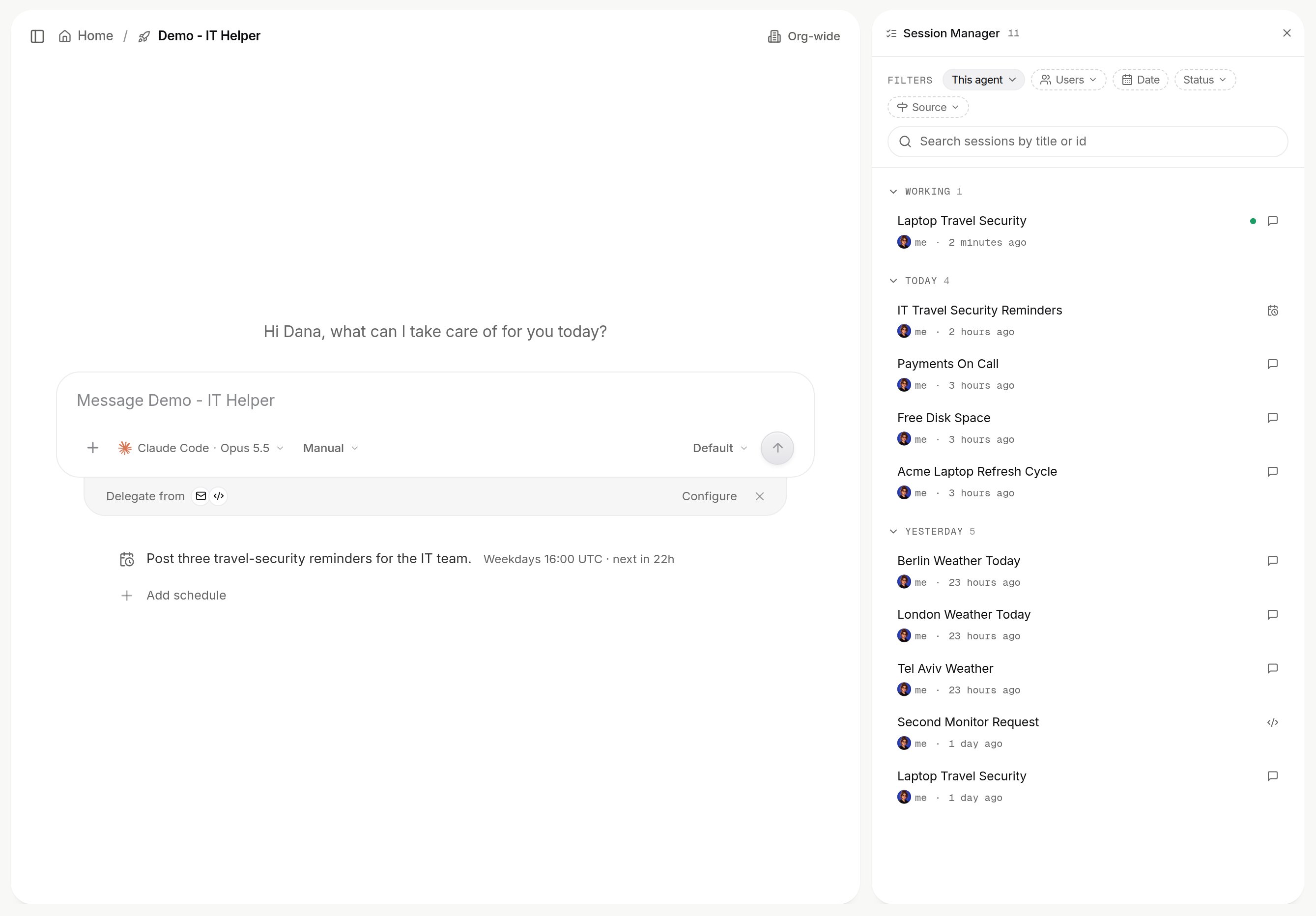
Session Manager: every task for an agent, filtered by This agent, Users, Date, Status or Source, and searchable by title or id. Shown with sample data.
Approvals
When an agent reaches an action that needs sign-off, the conversation shows a card with the action, its parameters and who started the run, with Approve and Decline. Settings > Approvals, in your own settings, lists what agents ask you under Waiting for you and your past decisions under Decided; it shows your approvals, not the organization’s. If nobody decides within the agent’s approval hold window (four hours by default), the held action does not run and the run continues. See Approvals and Permissions and access.Results, live surfaces and sharing
Files an agent creates are in its Agent workspace. Make live on a file turns it into a live surface: a page the agent keeps up to date on each run, listed on the agent’s Live surfaces card and on the Surfaces page. Share on a conversation offers the audience Only you, Specific people or groups, Everyone at your organization, or Public, and whether viewers may reply. Sharing the agent itself, with view, use or edit permission, is done from the agent’s Manage access.Omni, the built-in agent
Omni is an agent that ships with xpander, one row in every organization’s agent list. Ask it to find an agent or a skill, run a task, explain what a run did, or assemble a new agent from approved skills. It answers in Xpander Chat, in Slack, in Teams and by email, and it serves the MCP endpoint your own client connects to (see Start here). It is one agent among yours, not a separate product. Each user has their own Omni. To reach yours from code, call Get Omni Agent with a personal API key; it returns Omni’s agent id, which works with every agent route of the API. The Omni button in the bottom corner of the screen opens the Omni sidekick. It is a floating chat window with Omni that sees the page you are on. For admins, it can also change organization settings after you confirm.Changes Omni proposes
Omni can suggest changes to an agent you may edit. It shows each change on a card first. Nothing changes until you approve it.- Improve instructions. Ask Omni to improve an agent. Omni reads the agent’s failed runs and the answers people marked down. It writes new instructions and shows a card with the old and new text side by side. Each finding on the card names the run it came from. When nothing failed, Omni says so and proposes no change.
- Check the impact of a skill change. Before you change or remove a shared skill, ask Omni which agents use it. Omni lists each agent, says whether its instructions mention the skill, and says whether it has a test suite. This check only reads. It changes nothing.
Search and settings
Search (⌘K) sits at the top of every screen. The bell shows notifications, including approvals waiting for you. The gear opens Settings, your own:
- You: Profile, Notifications, Connections, Approvals
- Library: Skills, Knowledge bases
- AI: Memories, AI models & keys, Usage