

- the run: what an agent may do without a person
- the agent: who may use it
- the conversation: who may read and continue it
- the skill: which agents may hold it
- the credential: whose account a call uses
On a run: permission mode and approvals
Each conversation runs in one of two modes, chosen under Approvals in the composer with its first message and fixed for that conversation:
A held action shows a card in the conversation with a sentence about the action (never its raw arguments), who started the run and who may decide. In Manually approve mode the card is headed bash (gated mode), says what the command does in one sentence, and offers Decline and Approve. It goes to the people or groups named on the rule, or to the agent’s owner when none are named; any one of them settles it. The approver can allow this exact call, the rest of this run, this kind of call for a few minutes, or until revoked. A decline answers only this attempt, and the conversation continues with that knowledge unless the rule says stop. The requester can withdraw a pending approval. A gated command’s approval request stays pending until someone decides; if nobody decides within the agent’s approval hold window (4 hours by default) the held command does not run and the run continues, though a later decision can still approve the pending request. A marked skill action waits for the same window, then expires and the run resumes with “Not answered in time.” Decisions are made in Xpander Chat (each person sees what waits for them under Settings > Approvals), from the email link, or in Slack, Telegram or WhatsApp; each is recorded in the task and in Platform > AI governance > Audit log. While a gated command waits,
GET /v1/tasks/{id} still reports status: executing and carries no approval request, so a gated command cannot be decided over the API. A question card is different: it is answered with POST /v1/agents/{agent_id}/conversations/{conversation_id}/answers (Submit Question Answers). See Approvals.
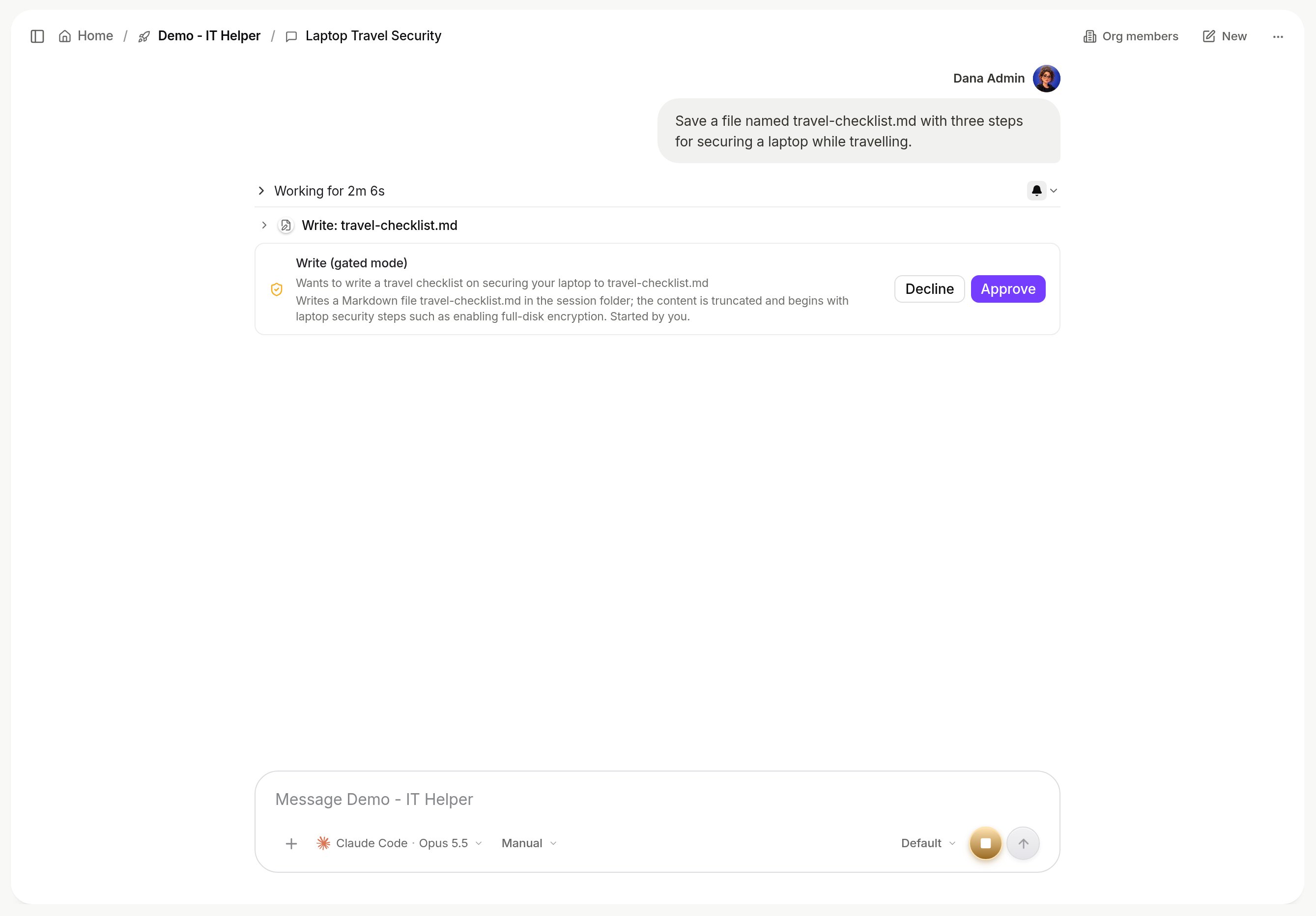
An approval card in the conversation.
On an agent: access and sharing
ACCESS on the agent is Org-wide by default: everyone in your organization gets the agent in their workspace with full access, including editing. Manage access (“who can use this agent”) narrows that under Visibility: Private keeps it to you, and Group opens People and groups, where you pick people and groups and give them one of three permissions before Apply. A restricted agent is invisible to everyone else; a link to it reads “not found” rather than revealing it. Manage access is separate from sharing the agent as an app link.
Group grants follow the group’s membership. Whether a person may create, duplicate, delete or share agents at all is a user-group switch.
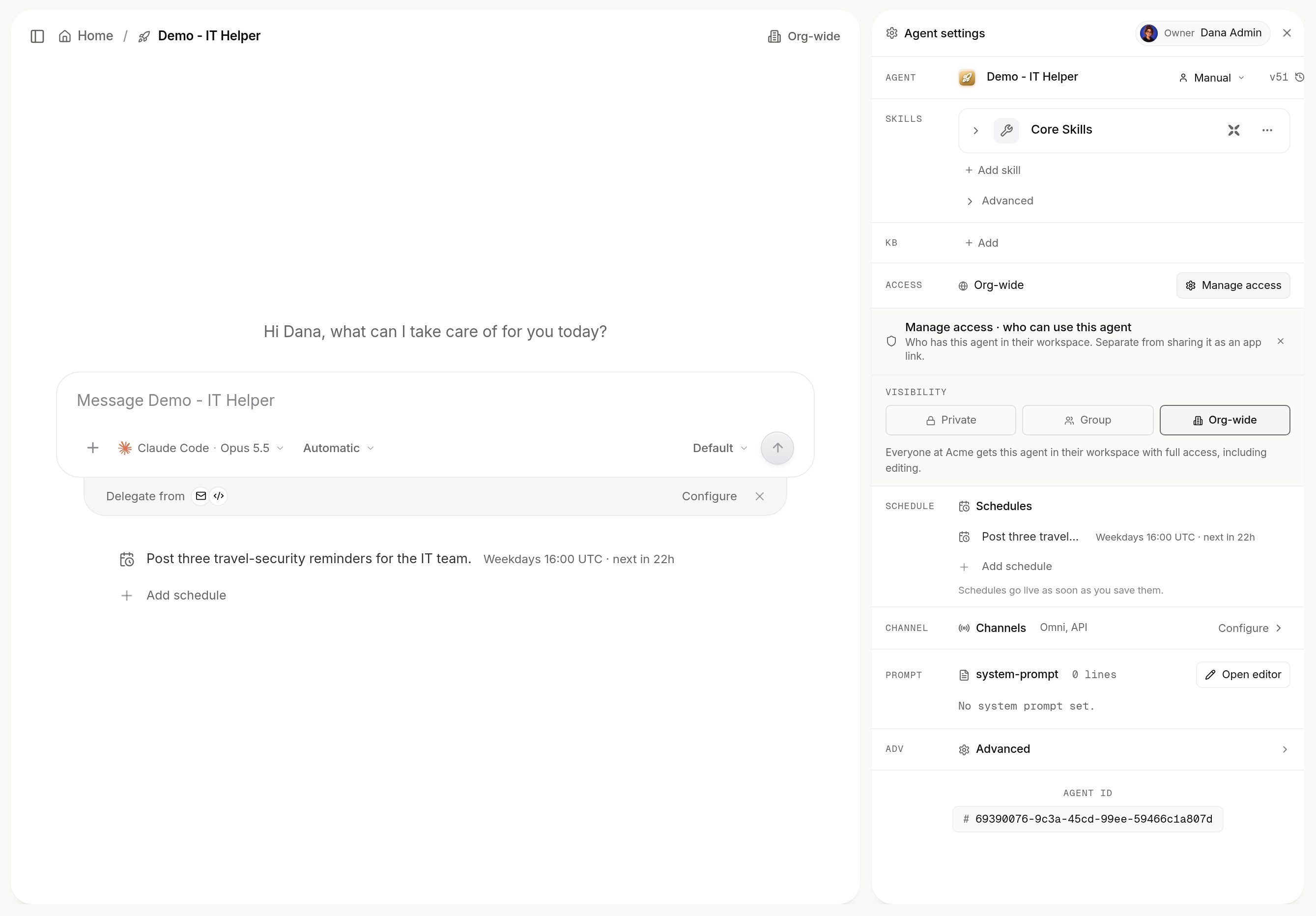
Manage access on an agent.
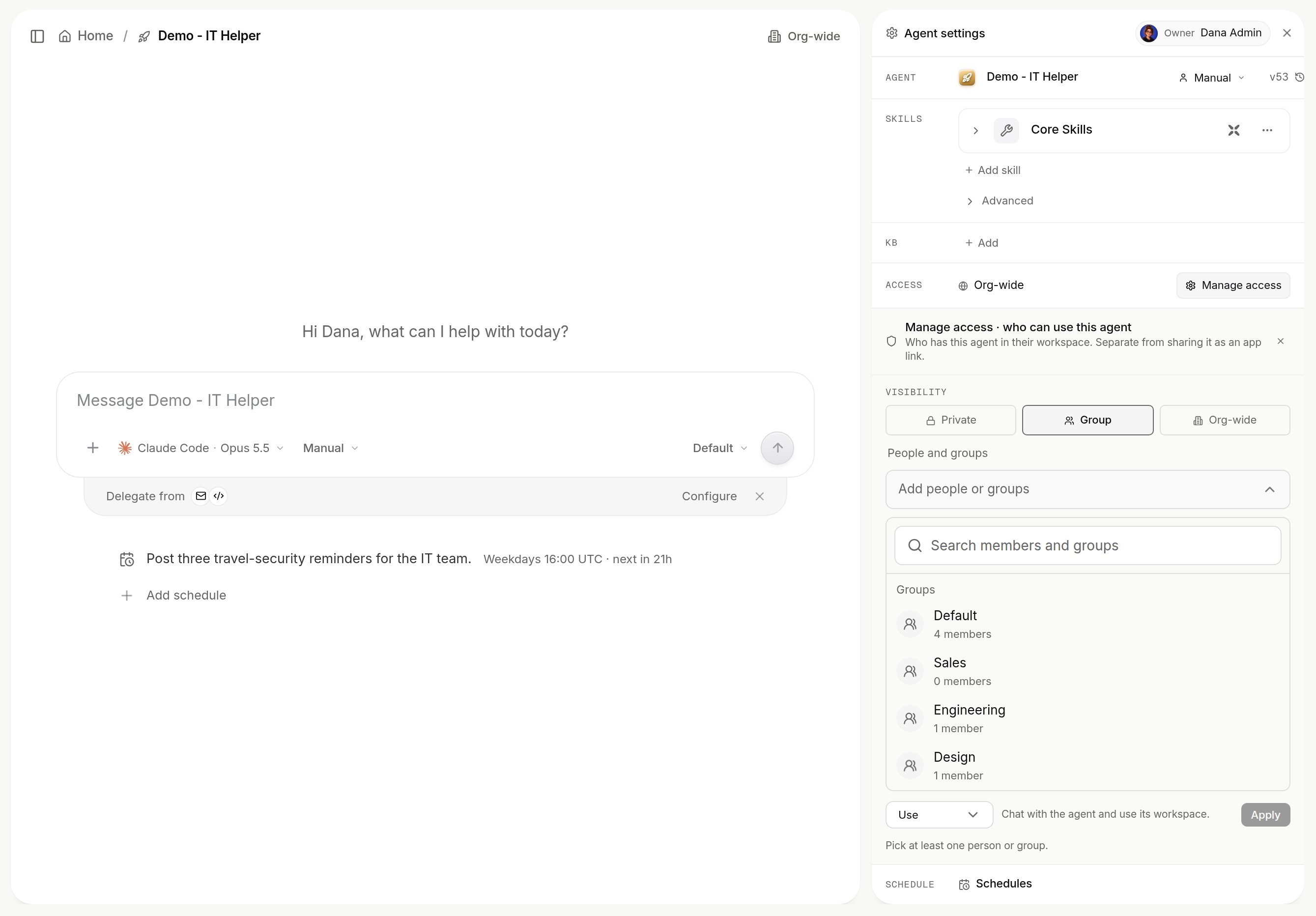
Manage access with Group selected: the people-and-groups picker lists your groups and members.
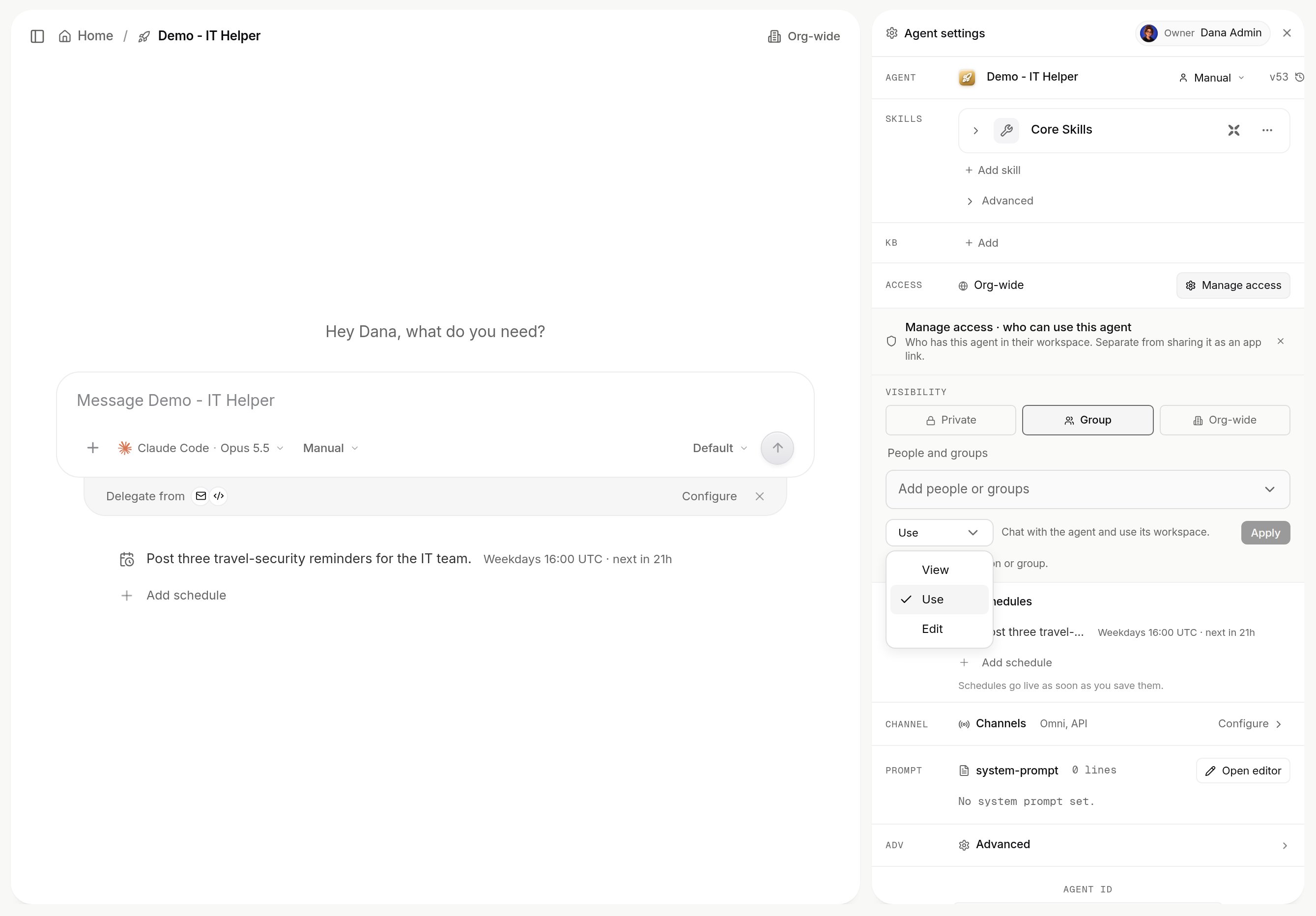
Choosing the permission to give: View, Use or Edit, then Apply.
On a conversation
You can read a conversation when it is yours, when you own the agent, or when the agent is org-wide. Renaming, deleting or sharing it is the author’s alone. Share conversation adds an audience: only you, your organization, named people or groups, or anyone with a public link. Allow replies lets a viewer continue in a copy of their own; the original is untouched. Live surfaces in a shared conversation follow the share.On a skill
A skill’s VISIBILITY is Org-wide, the default, where everyone can see the skill and attach it to their agents; Private, where only you can; or restricted to named people and groups you add. Manage access on the skill sets the scope; someone outside it cannot see the skill or attach it to an agent. Who may add API connectors, MCP connectors, custom actions or generate skills at all is a user-group switch. See Skills.Whose credential a shared agent uses
Each skill on an agent is bound to a connection: an organization account that anyone may use, or a personal one. The binding also carries an auth mode:- Autonomous, the default. Every call uses the connection’s own credential, whoever asked. If you attached your personal Slack account to an org-wide agent, a teammate’s request runs as you. Attach organization connections to shared agents. Only an org admin can delete an organization connection.
- Ask for approval. As above, and every call waits for a named person first.
- User authentication. Each person signs in to the system once; their token is stored per connection and person, and a call runs as the person who asked, where the system allows. Nobody’s token is ever lent to someone else. An unattended run, from a schedule or a webhook with no signed-in person, is refused unless the credential’s policy allows it.
use_secret event in the audit log. MCP connectors have the same choice, plus two switches per binding: whether a person’s token is shared across the agents they use, and whether callers without a sign-in of their own may run on the connection.
An MCP connector can instead use Signed-in user (SSO) as its authentication, offered where the organization has single sign-on set up. The server then receives the person’s own SSO token as Authorization: Bearer on every call, with no separate sign-in to the server:
Whose token a run uses: in Xpander Chat and for Omni over MCP, the person who asked. On a schedule, a webhook, an API call or a channel message from someone with no linked account, the agent’s default user. A person who has not signed in through SSO, or whose sign-in expired, gets a note from that skill asking them to sign in through SSO; xpander never opens an OAuth sign-in for these servers. If someone who is not an admin changes the address of a server that sends the token as it is, it switches to Exchange for an audience.
Roles and user groups
Platform > Organization > Members & groups carries dozens of switches per group. These cover adding and managing skills; creating, duplicating, deleting and sharing agents; each section of the agent settings; each Settings tab; workspace file actions; and the channels an agent may be bound to. A feature is hidden when every group a person belongs to disables it. Groups can also follow your identity provider’s groups; see Identity providers.