

SKILL.md document, with any scripts and files it points to, that tells an agent when and how to do one job. The skills registry is where your organization keeps them. Badges on every skill tell you who provided it, so a reviewer can tell a private draft from something the whole organization relies on.
Where the registry shows up
Open an agent’s settings and use Add skill. The panel lists everything the agent may reach; underFILTERS, the Skills chip narrows it to skill bundles, and under SCOPE, All, Organization and Mine split the library into what is shared with you and what you created. A small icon on each row is its provenance; hover it for the badge name and the text quoted below:
The hover text speaks to the person who owns the skill. Admins can also see and use a Private skill, which is why Shared with describes Private as “only you and admins”.
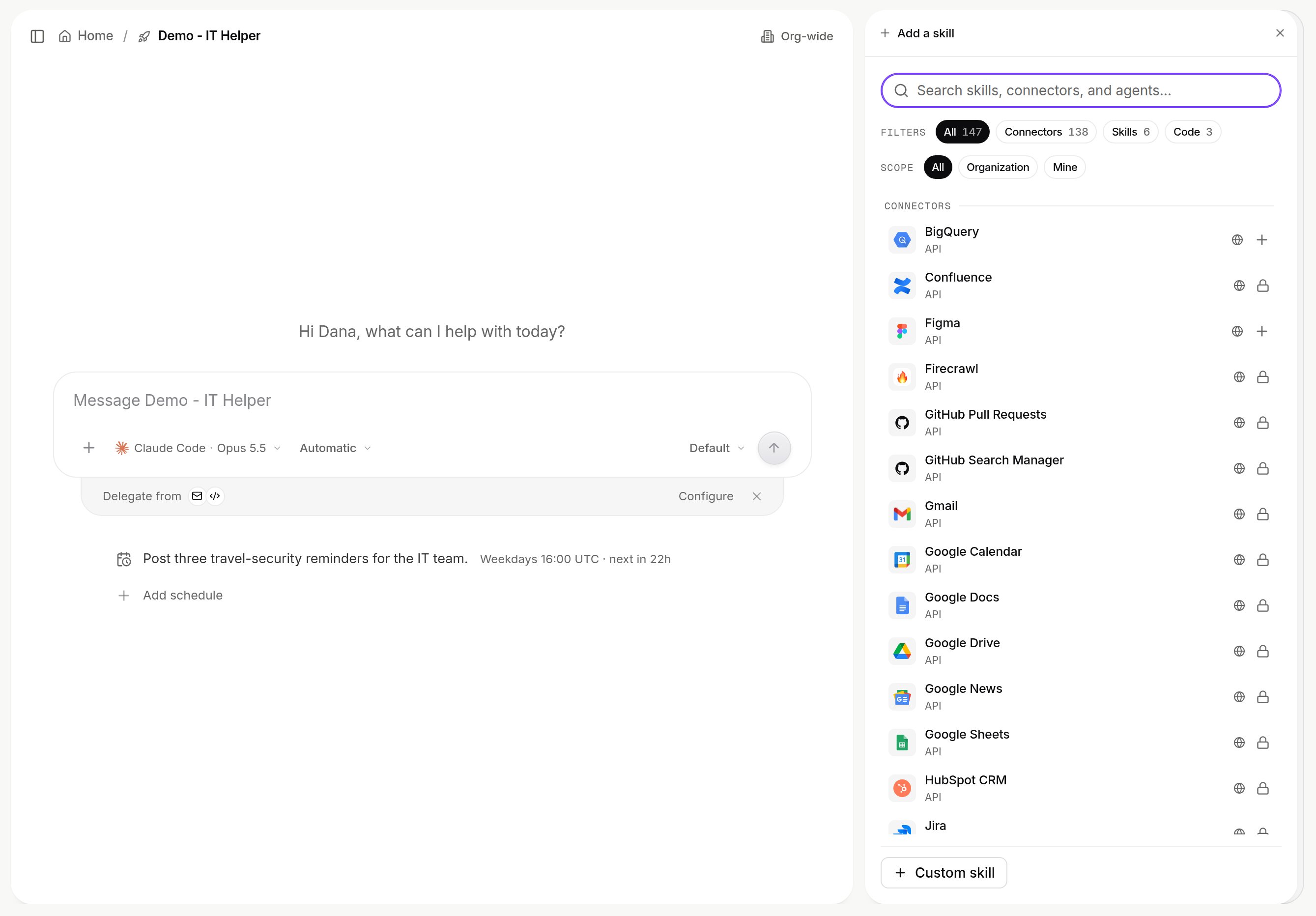
Add skill on an agent. Skill bundles carry a provenance icon; a registry skill opens a preview of its SKILL.md before you add it. Shown with sample data.
SKILL.md first, so you read what it does before adding it. Search covers names and descriptions.
Create a skill
At the bottom of the panel choose Custom skill, then Skill. (When theSkills view is empty the same flow is offered as Create a skill.) The New skill card opens beside the agent’s settings:
- SKILL: the name. Lowercase letters and digits separated by single hyphens. Names are unique within the organization, and the words
anthropicandclaudeare not allowed in them. - ABOUT: a one-line description. If you leave it empty the first line of the document is used.
- SKILL.md: the document itself. Typing a
name:ordescription:in its front matter fills the rows above, and editing the rows writes back into the document. Keep it short: the panel notes thatSKILL.mdis loaded fully into the agent at runtime, so longer procedures belong in bundled scripts and files it points to.
1.0.0 and attaches it to the agent you started from.
Import instead of writing
The same card has two import paths:- Import file or zip: a
.mdfile, or a zip that containsSKILL.mdand any other files. Files beyondSKILL.mdcan only arrive this way; the editor opensSKILL.mdalone. - From URL: a link to a
SKILL.mdor to a bundle zip that contains one.
Imported with warnings banner listing what changed. Skills you already wrote for Claude Code use the same format, and Omni can import them for you from Claude; see Start here: you have Claude Code.
Manage a skill you created
Open Settings > Skills and click the skill’s row. A panel opens beside the list, headed by the skill’s badge, version and last update (“Group skill, version 1.0.1, updated 22h ago.” for a skill shared with a group). What you can do depends on whether you created it:- Name and Description are editable fields.
- Shared with decides who may use it: Private (only you and admins can see and use it), People (the people and groups you pick under Add people or groups can attach it to their agents), One agent (pick an agent; only that agent can use it) or Organization (everyone in your organization can attach it to their agents).
- SKILL.md is editable in place. Save changes applies the edits and bumps the version.
- The ⋯ menu at the top of the panel, next to the close button, offers Download bundle (the skill as a zip), Replace files and Delete. Delete asks first: agents using this skill lose it, and it can’t be undone.
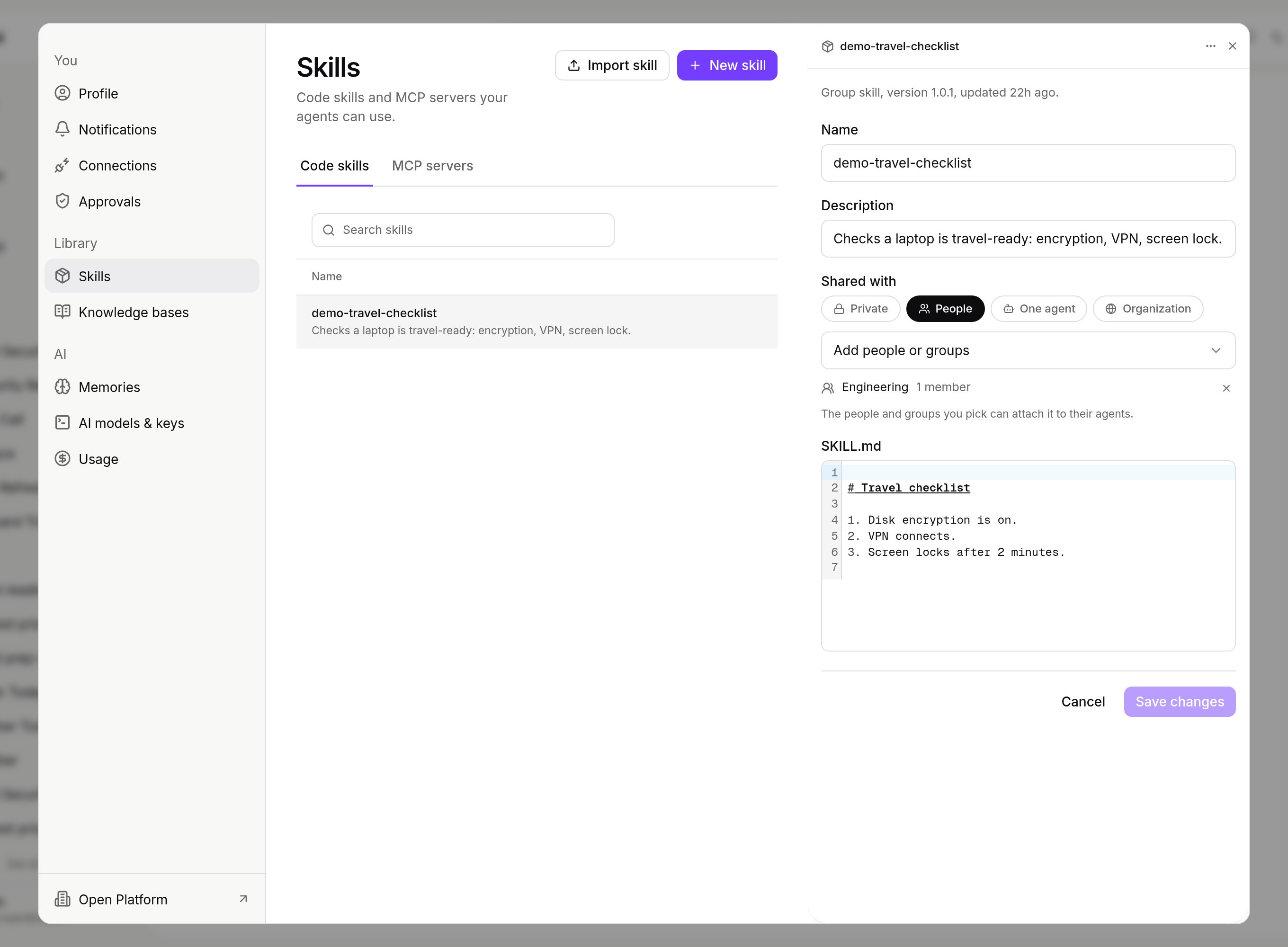
A skill opened from Settings > Skills: name, description, Shared with and its SKILL.md. Shown with sample data.
Approve skills that agents build
An agent can build a skill or custom code when a task needs one. What it builds starts as a Draft. Only the agent that built it and the person it was built for can use a draft. When the agent shares the item, it can join the skill library only with a passing test report. The switches are Agents build skills and Publish without approval under Agent-built skills; see Govern. With Publish without approval off:- The registry header counts the items waiting for approval.
- An admin opens the item. The Skill library section names the agent that built it and shows its test. Test runs the recorded test again on that agent.
- Approve moves the item into the skill library.
- Reject sends it back to the agent that built it as a draft.
What is governed and recorded
- Who may use a skill is its Shared with setting above. A private skill is invisible to everyone else; a skill shared with people is visible to the people and groups named on it; a one-agent skill is usable by that agent only; an organization skill is visible to the whole organization. Separately, a skill published from a repository can carry an agent allowlist (
restricted) or belong to one agent (agent); Xpander Chat refuses to attach such a skill to an agent outside its scope. - Who may add or manage skills at all is set per user group in Platform > Organization > Members & groups, with the
Add skillsandManage skillstoggles. - Every skill carries its version and the badge of who provided it, so an agent’s skills list reads as a bill of materials.
- Platform > AI governance > Audit log records
Skill CreatedandSkill Addedevents under the Agent category, with the person who did it. The task record shows each skill call an agent made; see Permissions and access.