

https://<your xpander>/desktop/, which is chat.xpander.ai/desktop on xpander cloud. The web chat also offers it when you choose Open in Desktop without the app installed.
macOS
For Apple silicon and Intel Macs.- Download the
.dmgfor your Mac and open it. - Drag Omni into Applications.
- Open Omni from Applications.
Windows and Linux
Omni Desktop for Windows and Linux is coming soon. On Windows, agents will work with your trusted folders directly. The shell is not available there yet.
Updates
The app downloads new versions from your xpander by itself. A strip under the title bar names a ready one, for example Omni 1.5.0 is ready, with Restart to update and Later. Settings > About shows the same, and Check for updates… in the Omni menu checks now. A self-hosted xpander serves its own updates, so the app never needs the internet for them.
A new version is ready. Shown with sample data.
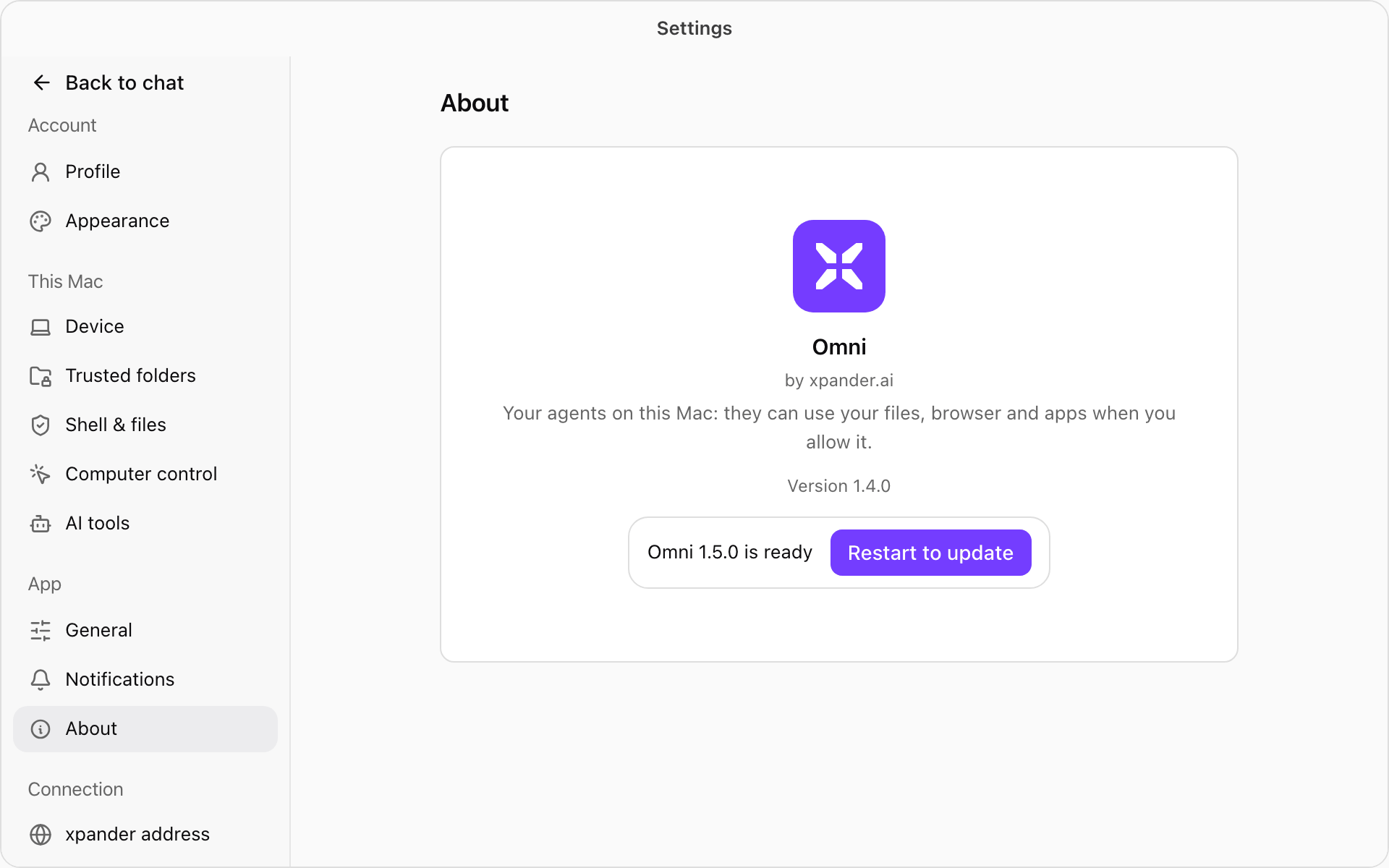
Settings > About with an update ready. Shown with sample data.