Settings for the app and this computer. Organization settings open in your browser.
Open Settings with Cmd+, or from the menu bar icon. Organization settings (members, billing, API keys, policies) open in your browser from Profile > More settings.
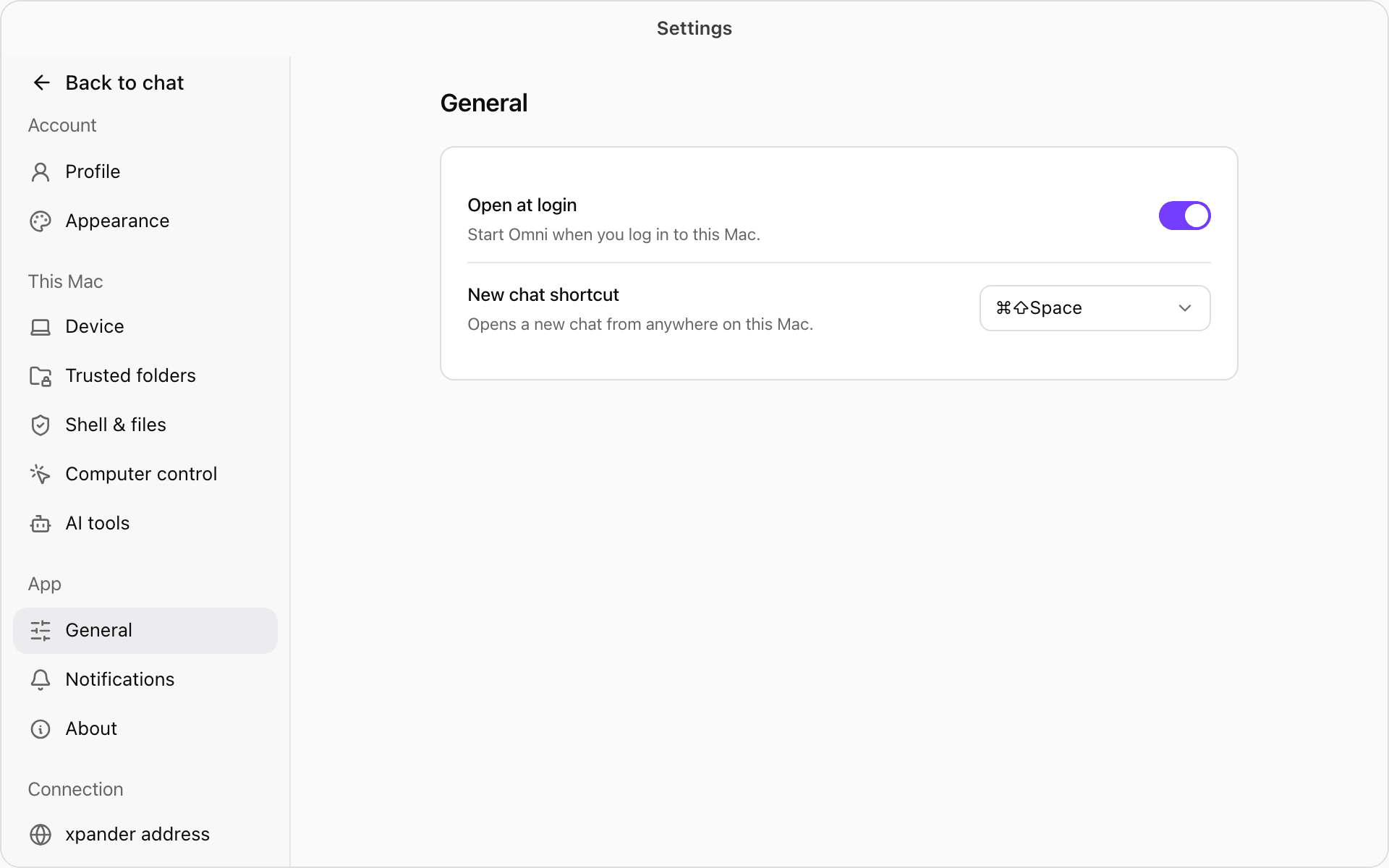
Settings in Omni Desktop, open on General. Shown with sample data.
Name (starts as the computer’s own name), Device ID and Connection. Forget this laptop removes it from your organization, clears its trusted folders and signs you out. Nothing on disk is deleted. Signing in again registers it as a new device.
Trusted folders
The folders agents may use, and the access for each. See Trusted folders. Also shows Browser control with Ask each time after you allowed the browser Always.
Shell & files
Your own switches for files, the shell and its network, browser control, moving work to the cloud and back, and where agents work first. See Your settings and the policy.
Computer control
Computer control on or off for this Mac, and the macOS permissions it needs. See Computer control.
Open at login, and New chat shortcut (Cmd+Shift+Space by default, another shortcut, or Off).
Notifications
Notifications (on by default). Save new files to this Mac automatically saves files an agent left only in the cloud into your folder for new files, without asking (on by default). Existing files are never replaced.
About
The installed version. Updates download on their own. When one is ready, About shows Restart to update.
The xpander this app uses. Change signs you out first, then connects this computer to the new address. Reads Set by your organization when your company manages it.
Sign out
Signs you out on this computer. Your trusted folders stay.
Was this page helpful?
Assistant
Responses are generated using AI and may contain mistakes.