

- Your organization’s Desktop policy sets the most that is allowed, for the whole organization and per group.
- Your own switches, in Settings > Shell & files and Computer control, can turn any of it off for this computer, never on beyond the policy.
Your switches
Everything starts on. Settings > Shell & files:
Folders that may be trusted shows your organization’s rule (Any folder, the allowed folders, or None) and cannot be changed. Settings > Computer control holds that switch and its macOS permissions. See Computer control.
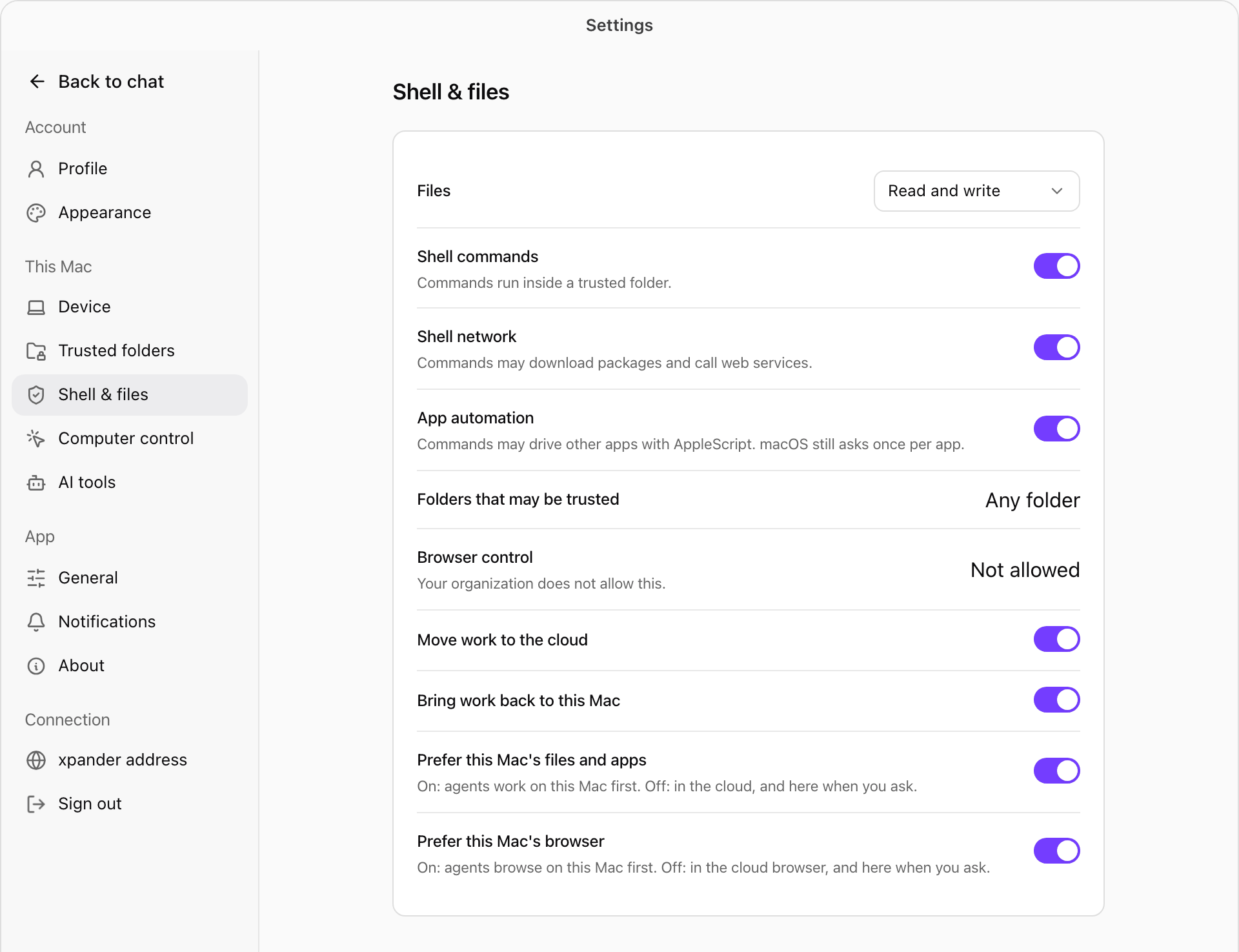
Settings > Shell & files, with browser control turned off by the organization. Shown with sample data.
When your organization does not allow something
A switch the policy turns off reads Not allowed, with Your organization does not allow this. Ask an admin. When your organization turns Omni Desktop off for you, the menu bar icon reads Turned off by your organization, the sidebar shows Mac turned off, and agents cannot reach this computer. Policy changes apply while the app runs, with no restart.Prefer this computer or the cloud
Agents also have a cloud workspace and browser. Two switches in Shell & files decide where they work first in app conversations:
Turn one off to keep agents working after you close the lid, or to keep work off your computer unless you ask.