

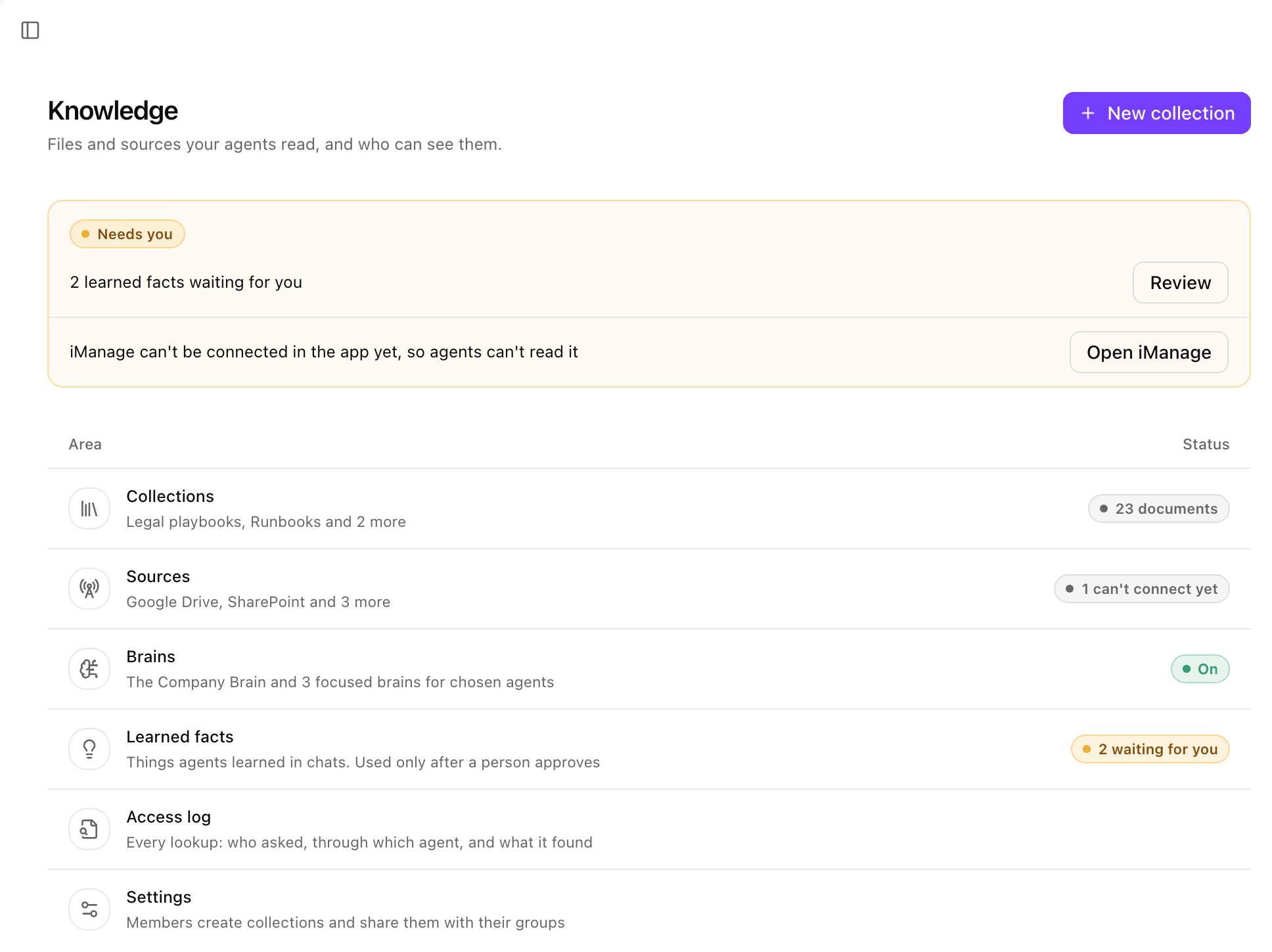
Platform > Agents > Knowledge: the Needs you strip above the six areas, each with its status. Shown with sample data.
Brains
Create a specific brain
Open a new brain
Describe it
Pick an owner
Pick what it holds
/sites/legal. A brain can narrow a source, never widen it.Choose whose access it uses
Choose who can attach it
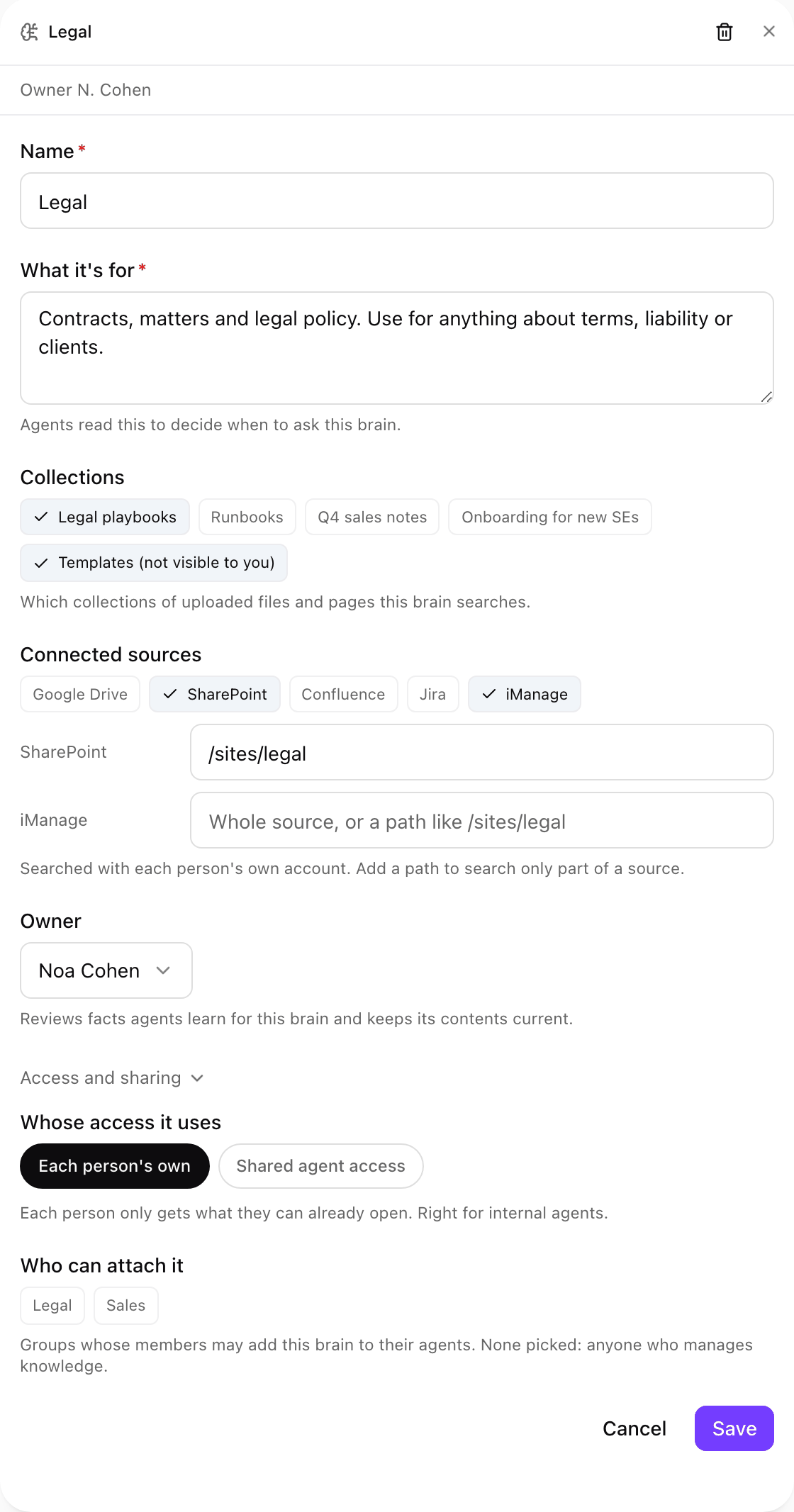
A brain opened from Brains: what it is for, the collections and connected sources it searches, its owner, and under Access and sharing whose access it uses and who can attach it. Shown with sample data.
Whose access it uses
- Each person’s own: each person gets only what they can open themselves. Stored documents are filtered by their access, and live sources are read with their own account. Use it for any agent your own people sign in to.
- Shared agent access: anyone using an agent this brain is attached to can read its collections, signed in or not. Use it for public, embedded and community agents. Connected sources are left out, because they need each person’s own sign-in. To include a folder’s files, keep a copy of it.
Collections
A collection is a set of documents stored in xpander, with an owner and an audience. Documents are split into sections with their heading path and page number, so agents cite them down to the page.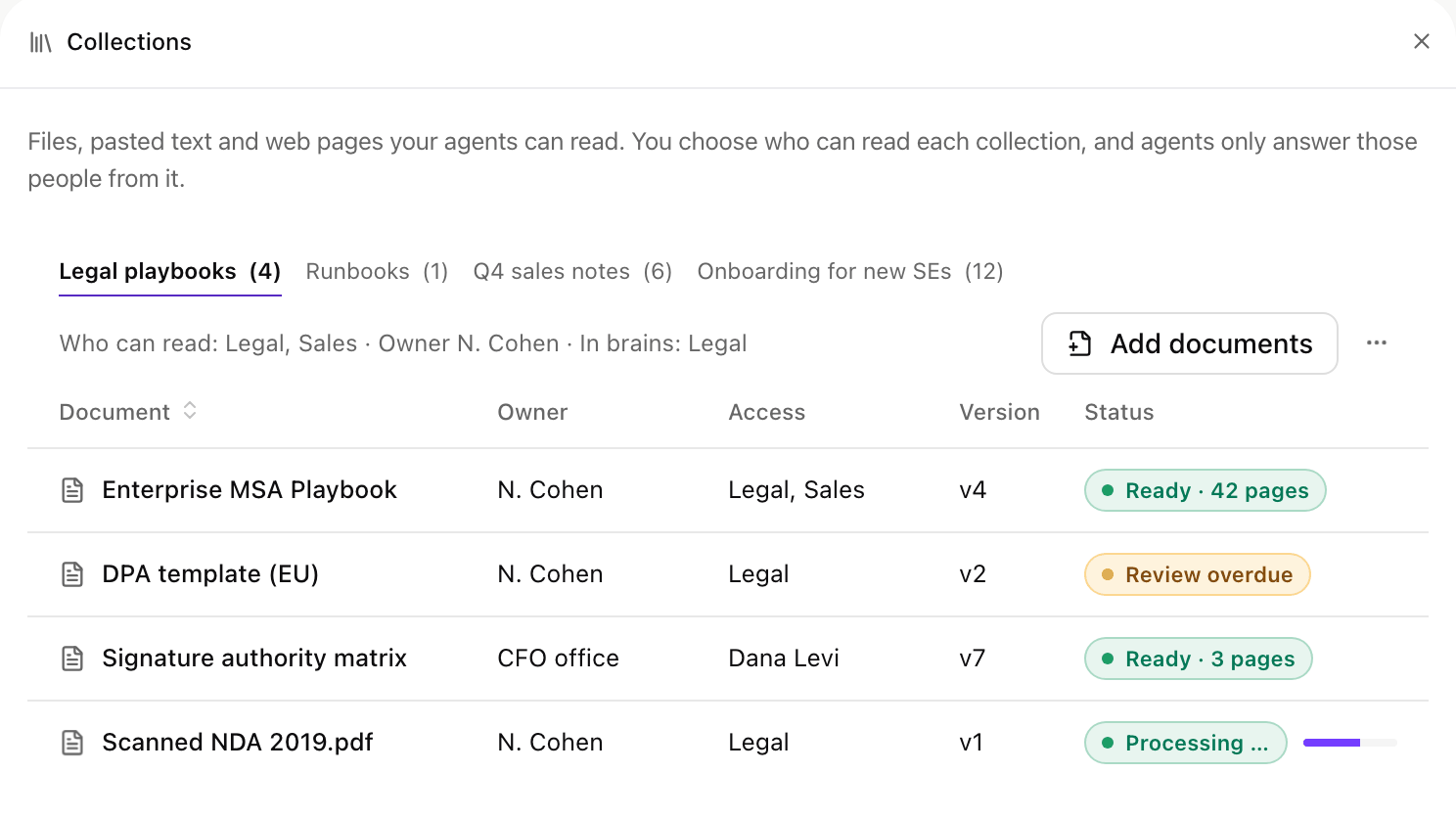
The Collections panel: one tab per collection, who can read it, and each document with its owner, access, version and status. Shown with sample data.
Create a collection
- Select New collection in the page header.
- Fill Name and What it holds.
- Under Who can read it, choose Everyone in the organization, or pick people and groups. Each document can narrow this further.
- Turn on Let others who can read it add files to let anyone in the audience add documents. Off, only the owner and admins add files.
- Select Create collection. The Add documents card opens next.
Add documents
Add documents takes three kinds of content:- Upload: drop files or choose them. PDF, Word, PowerPoint, Excel, Markdown, HTML or images, up to 25 MB each. Scans are read with OCR.
- Paste: a Title and the Text.
- From a URL: the Address of a public page, and an optional Title (the address is used when it is empty). Addresses inside your network are refused.
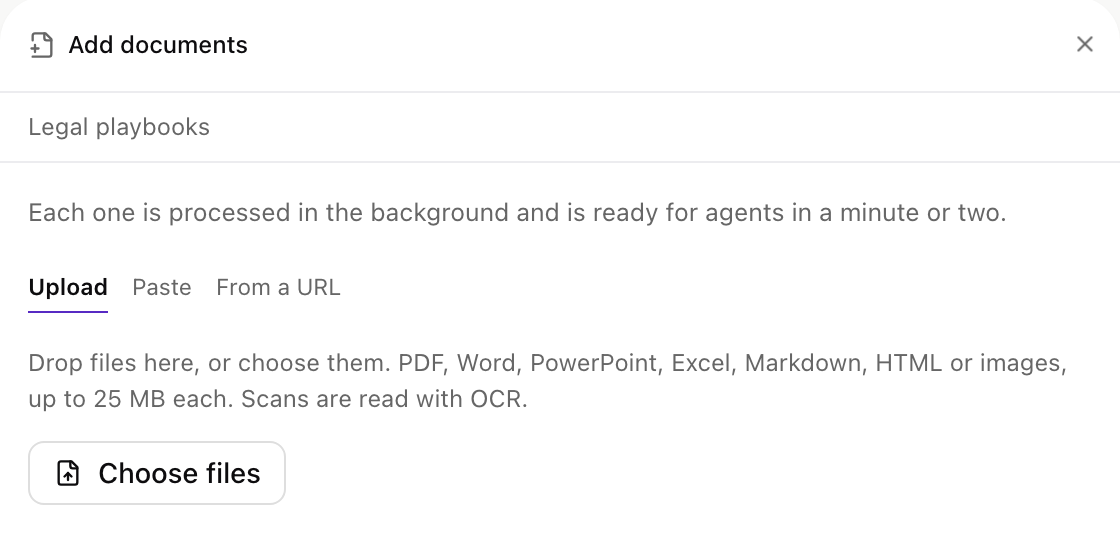
Add documents on a collection: Upload, Paste or From a URL. Shown with sample data.
The document card
A document past its Review by date shows Review overdue. The chunk preview shows how the document was split, with the heading path and page each answer cites. Only some people, under Who can read it, limits one document to named people and groups inside the collection’s audience. An access change applies on the next question, with nothing parsed again.Versions
New version adds an upload, paste or URL as the next version. Only the current version is searched, and the previous one keeps answering until the new one is ready. Make current (for example Make v3 current) rolls back to an older version. If it needs re-indexing first, the current version keeps answering until it is ready.Share and delete
Edit collection changes its name, description and Who can read it. Delete collection removes every document and version, and brains that hold it stop finding them.Sources
A ready source shows Ready and how many people signed in, for example188 of 240 people signed in. Needs connection means it has no connection yet. Needs scope means it reads only what you pick and nothing is picked.
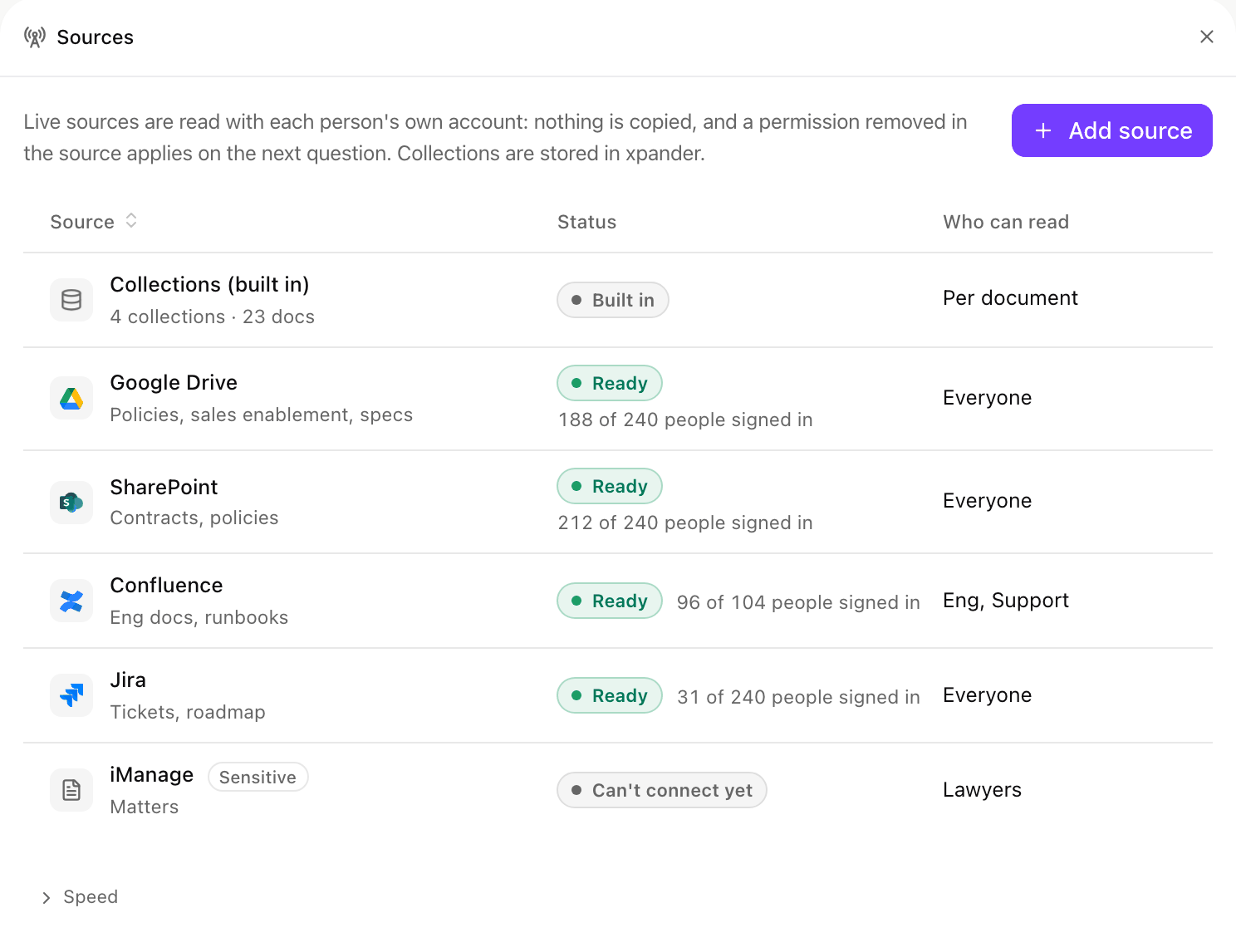
The Sources panel: the built-in collections, then each live source with its status, how many people signed in, and who can read it. Shown with sample data.
Add a source
Pick the type
Pick the connection
Name it
Set its scope
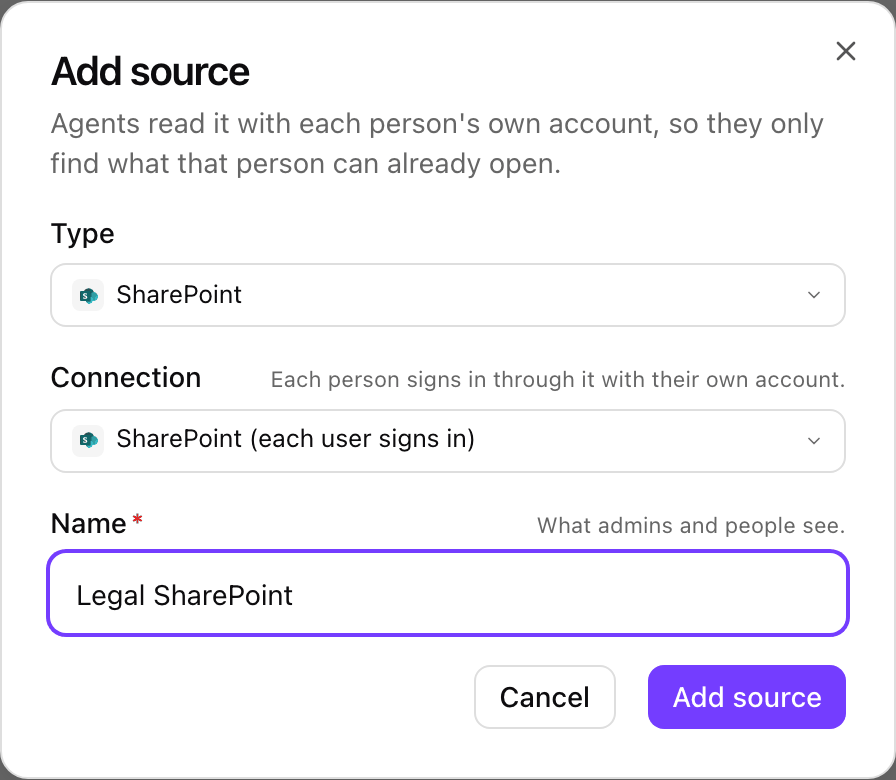
Add source: the type, the connection each person signs in through, and the name people see. Shown with sample data.
Each person signs in once
There is no shared or service account. Each person connects once, from Settings > Knowledge in xpander Chat, from the source’s Scope tab, or from Connect under an answer that skipped the source. Until then, the brain skips that source for them. The Connection tab shows how many people are connected, the timeout, and whether any content is stored in xpander.Files.Read.All and Sites.Read.All permissions before anyone can sign in.Scope
The Scope tab sets what the brain may read. It still reads only what each person can open.- All the user can see: everything the person can open. Best for wikis and ticket systems.
- Only what you pick: only the shared drives, sites, libraries, folders, spaces, projects or files under Include. Best for file drives, where personal drives add noise.
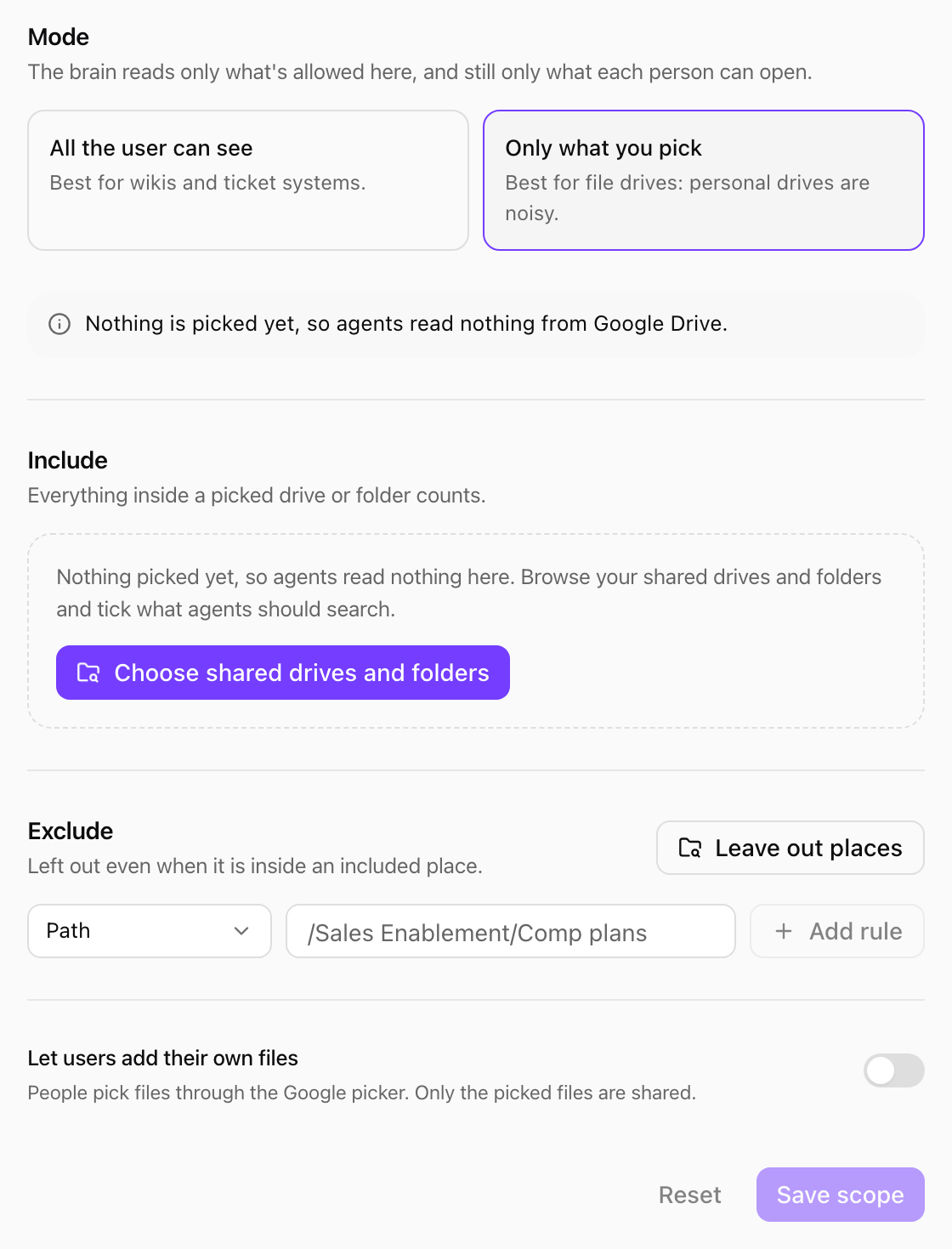
The Scope tab of a Google Drive source with Only what you pick and nothing picked yet. Shown with sample data.
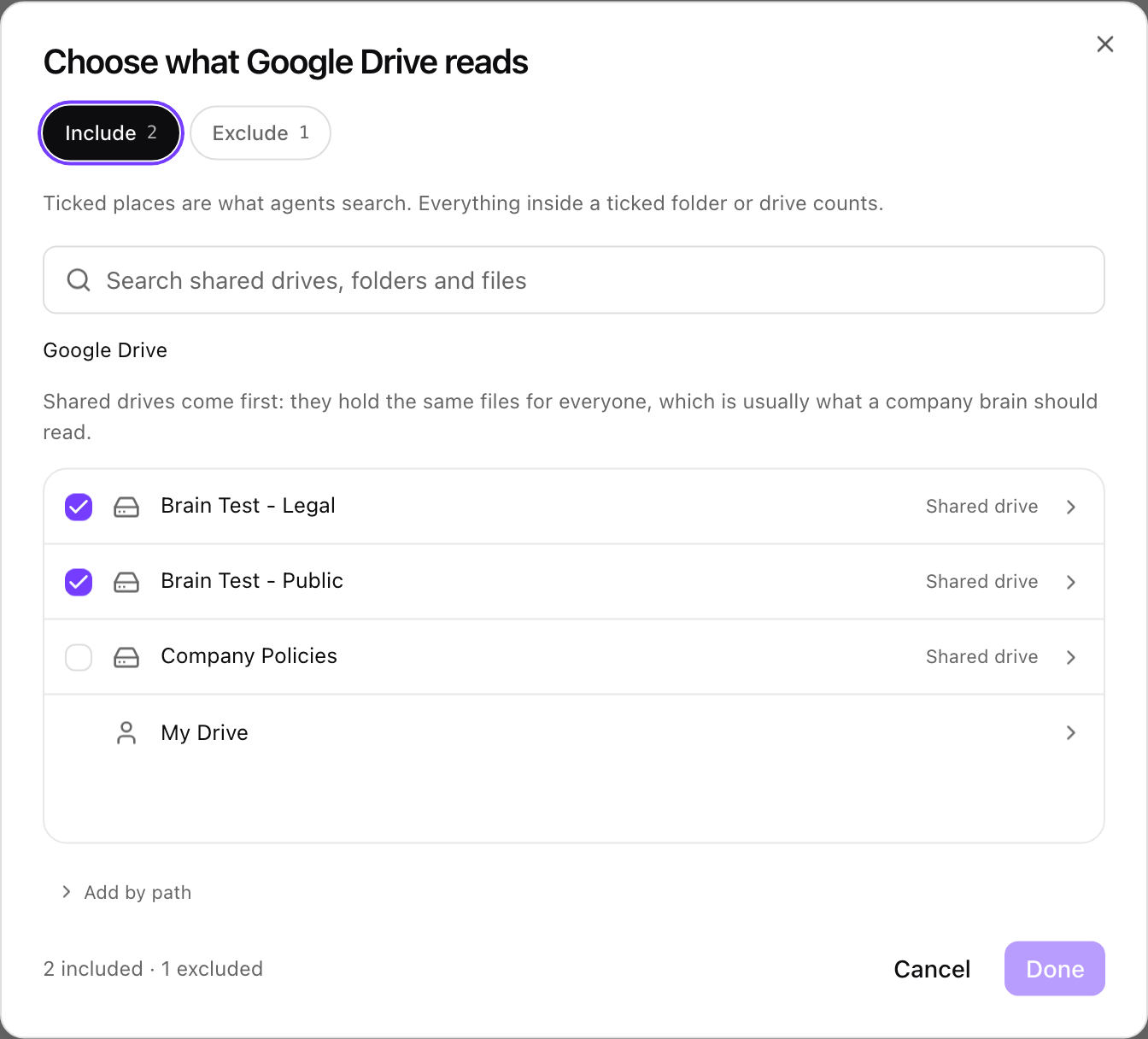
The picker: shared drives come first; tick what agents search, or switch to Exclude to tick what they leave out. Shown with sample data.
xlsx) or Modified date (older than a number of months).
Let users add their own files (Google Drive, SharePoint and OneDrive) lets each person share single files with the brain through the Google or OneDrive picker. Only the picked files are shared, and exclude rules still apply to them.
The scope is applied to the query and checked again on every result and read, so an item outside it is never returned, even to someone who can open it.
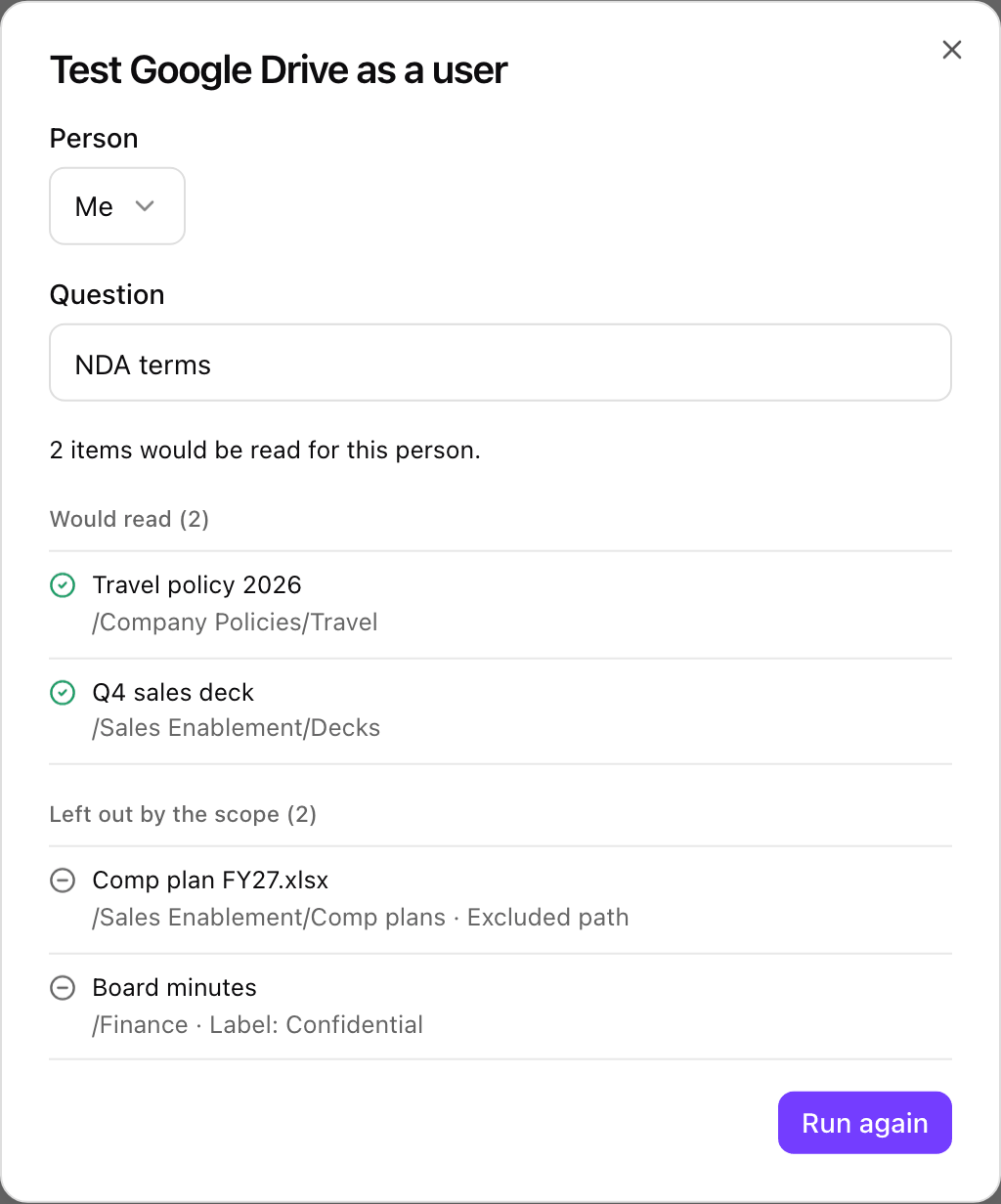
Test as a user on a Google Drive source: two items would be read, two were left out by the scope with the reason. Shown with sample data.
Sensitive sources and cache
The source’s Speed tab holds two settings:- Sensitive: results are never cached, so every answer reads the source fresh. Use it for HR, legal and other restricted material. The Sources table marks it with a Sensitive badge.
- Cache results for: seconds results are kept for the same person (0 to 3600, default 60, 0 turns it off). Cached results are never shared, so a permission removed in the source can take up to this long to apply.
Keep a copy of a folder
For a Google Drive folder, or a SharePoint or OneDrive library folder, the Keep a copy tab copies the folder into a collection. Use it to make those files available to a brain with shared agent access.- Enter the Folder: a Google Drive folder link or id, or for SharePoint and OneDrive the library’s Drive id and Folder item id.
- Under Copy into, pick a collection or A new collection.
- Set Who can read the copy. It does not follow who can open the folder: everyone in this audience sees every copied file. Confirm that, then select Keep a copy.
Notion
Notion is read live through Notion’s own hosted service, with each person’s own Notion account. Notion decides what each person can find and open, so answers follow their real Notion access. Nothing is copied into xpander and nobody has to share pages with xpander.Set up Notion (once)
Add it
Narrow it (optional)
/Engineering/Interviews). The places picker searches Notion by name with your own account.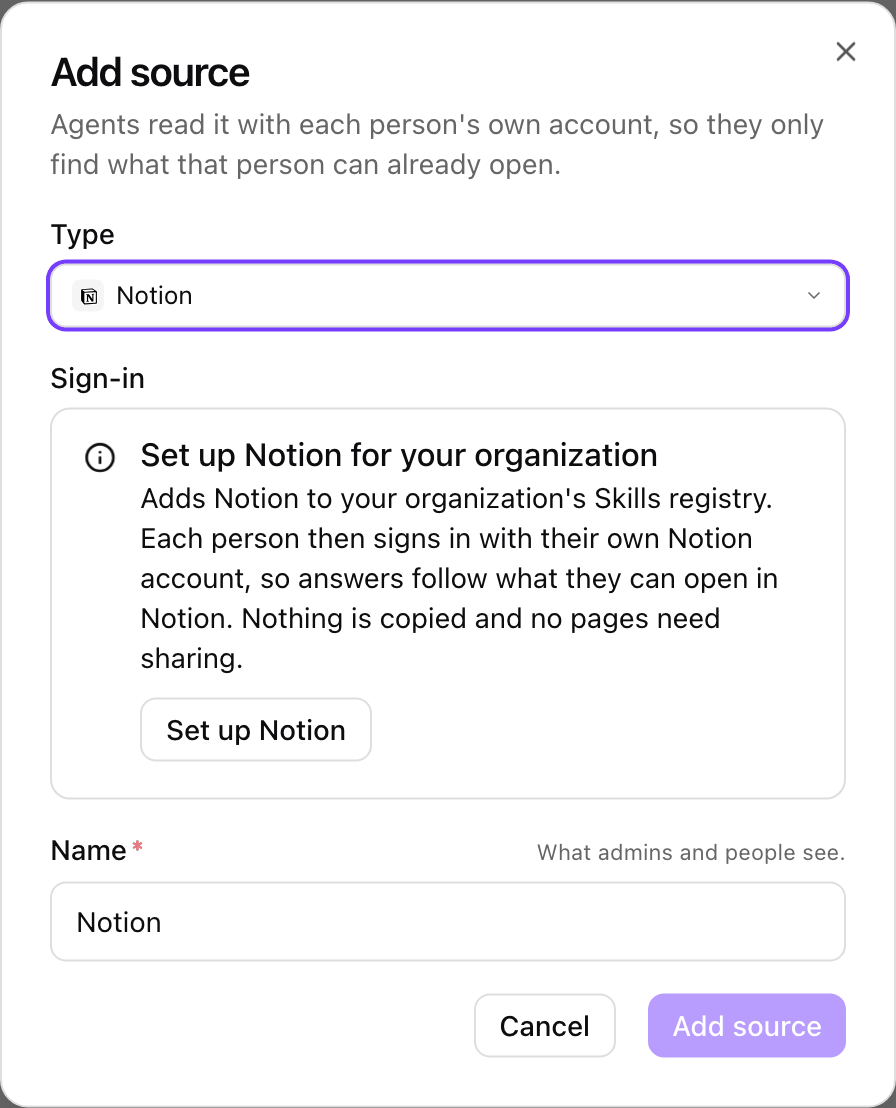
Add source with Notion before it is set up: Set up Notion adds Notion for the whole organization. Shown with sample data.
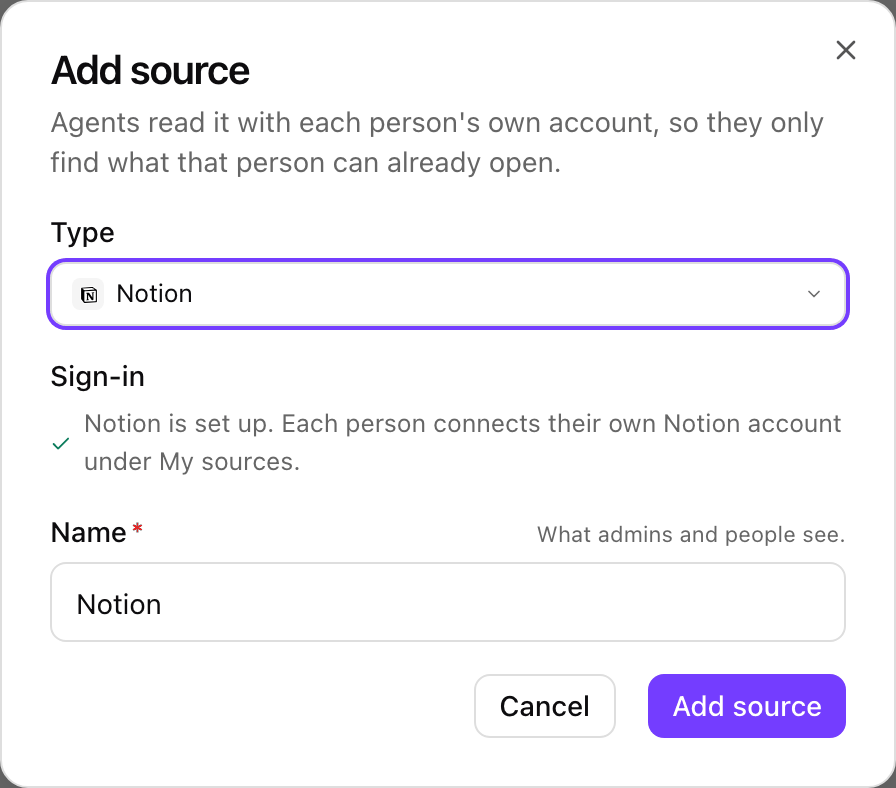
Notion set up: add the source, and each person connects their own Notion account. Shown with sample data.
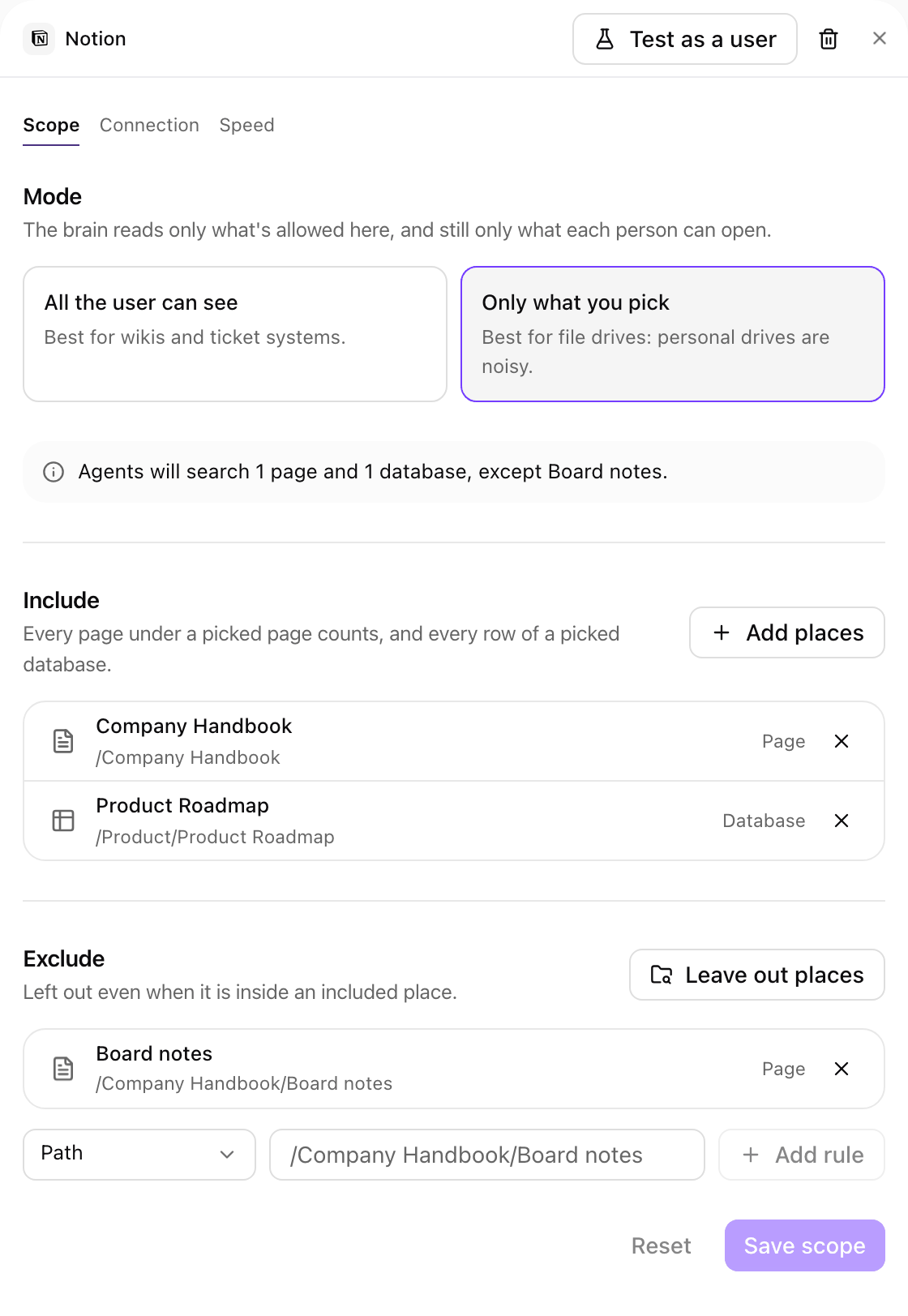
A Notion source's Scope tab, narrowed to a page and a database with one page left out. Shown with sample data.
- Each person connects. Someone who has not connected Notion gets nothing from it and is offered Connect, as for any source. They connect once from Settings > Knowledge > My sources with their own Notion account.
- Citations name the page and link straight to it in Notion.
- Search quality follows each person’s Notion plan: with Notion AI, Notion’s search understands questions, not just keywords.
- Rate limits. Notion limits how often each person can search (about 30 searches a minute). A person who hits it gets nothing from Notion for a short while; other sources still answer.
- Removing the source changes nothing in Notion and leaves Notion in your organization’s Skills registry.
- Air-gapped installations can’t use Notion: it needs Notion’s cloud service.
Settings
Learned facts
An agent can propose a fact, decision or procedure that a conversation established. A proposal is never used in an answer until its owner approves it, and then only for its audience. Learned facts are separate from agent memories, which hold short notes with no approval step. Each proposal can be approved, edited first (Save and approve), or rejected. A rejected fact is never returned. Who reviews. In order: the owner of the collection the fact goes to, the owner of the agent’s first attached brain that has one, the Company Brain’s owner, then an organization admin. The reviewer gets a notification and also sees the fact under Settings > Knowledge > Waiting for your approval. Conflicts. When a proposal contradicts a stored document, the card says This disagrees with that document and the button reads Approve and flag document. Approving asks the document’s owner to update it. Only documents the reviewer can open are named.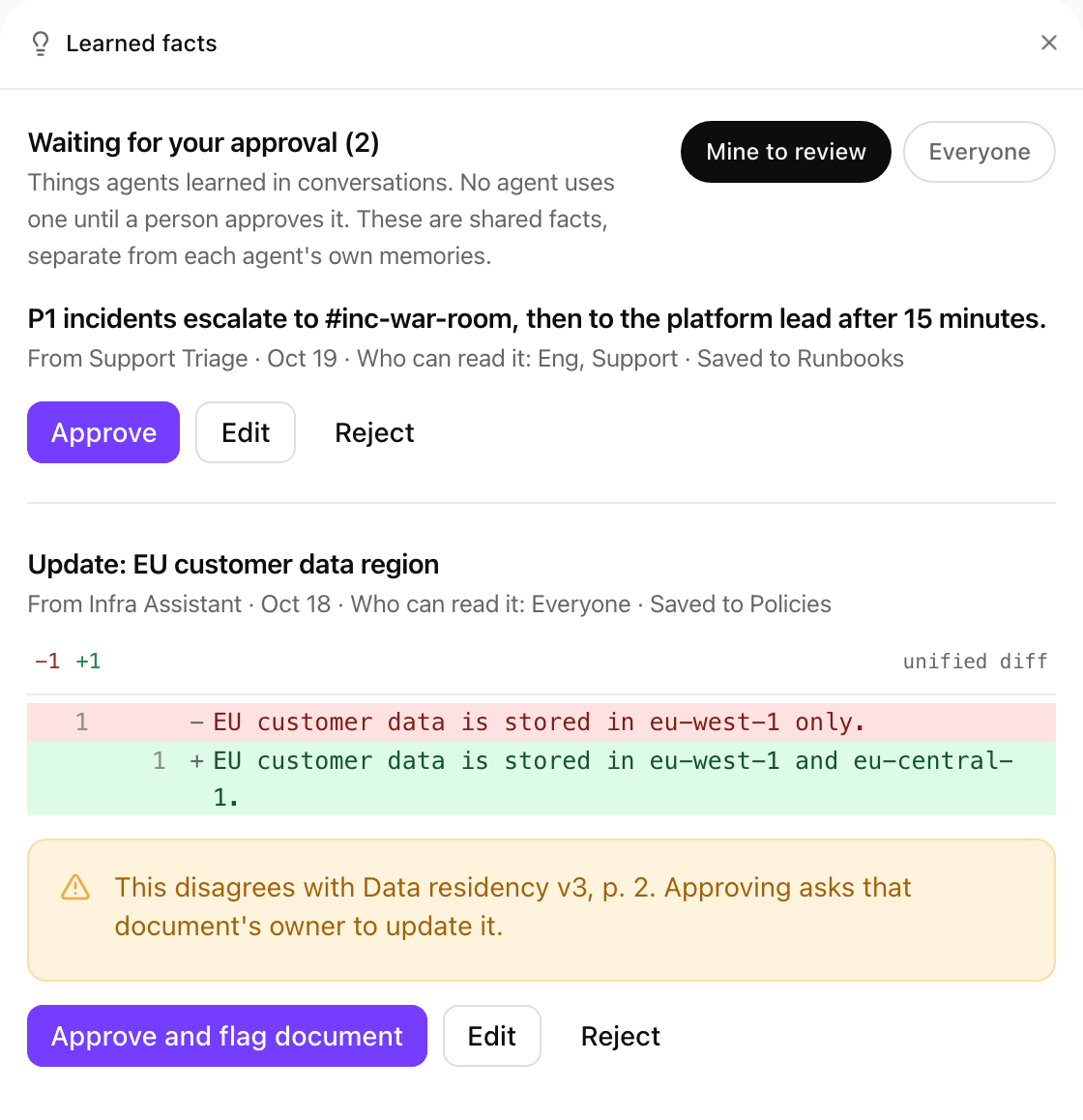
Learned facts waiting for approval. The second proposal updates a stored fact and disagrees with a document, so approving it flags that document. Shown with sample data.
Access log and speed
Access log lists every brain read: who, through which agent, which document (with version and page), and the result.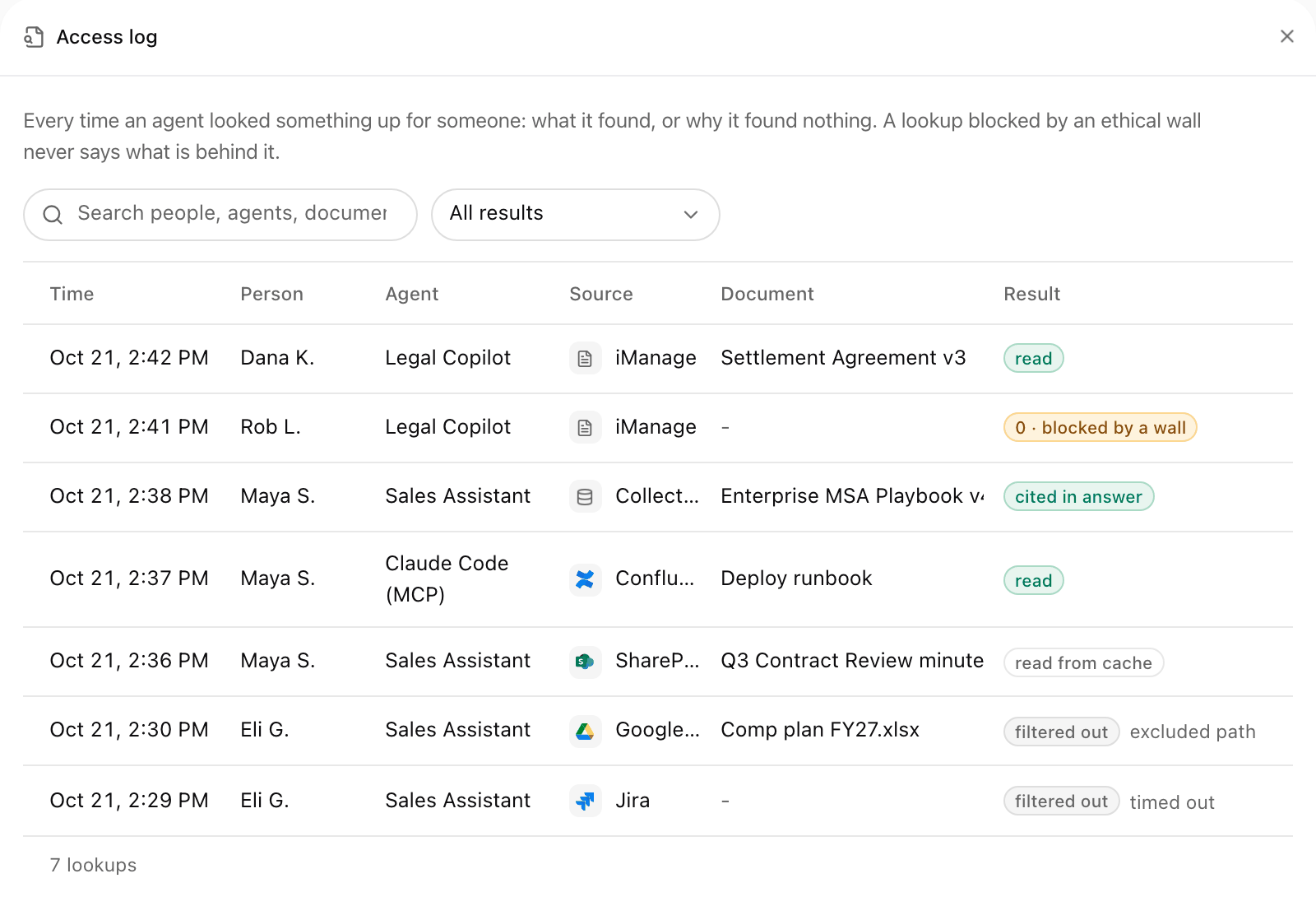
The access log: who asked, through which agent, what was read, and the result of each lookup. Shown with sample data.