

How it works
- The first time a request needs the MCP connector, the chat shows a Sign in to card. The person signs in with your identity provider (no password if they already use it for xpander).
- xpander keeps their token in the vault and refreshes it.
- Every call carries
Authorization: Bearer <their token>, and the MCP connector answers as that person.
Set it up
1. Turn on the sign-in broker
Theclient-auth service runs each sign-in and keeps the token.
Air-Gapped values:
2. Create a client at your identity provider
Confidential, authorization code flow, the redirect URI above (also shown as Redirect URL in step 4), scopesopenid profile email offline_access. The access token must name your MCP connector in its audience (aud). xpander does not send the RFC 8707 resource parameter, so the identity provider must add it. In Keycloak, add an Audience mapper to the client’s dedicated scope.
3. Make the MCP connector accept the token
xpander finds your identity provider from the MCP connector’s origin, using the first address that answers:/.well-known/oauth-authorization-serveron the MCP connector’s origin (RFC 8414)./.well-known/oauth-protected-resourceplus the server URL’s path (RFC 9728). xpander reads the firstauthorization_serversentry, then that server’s RFC 8414 metadata.
scopes_supported, so list only your client’s scopes.
Answer a missing or bad token with 401 and a WWW-Authenticate header:
401 or 403, or any WWW-Authenticate header, means “sign-in needed” to xpander. It uses the addresses above, not the header’s resource_metadata link. Send the header anyway for other MCP clients.
On every call, verify the token, check it was issued for your MCP connector, and act as the person in it:
- Verified email only. Anyone can type an email into a profile.
email_verifiedsays the identity provider checked it. If you can map people bysub(the stable user id), use that instead. - Keycloak: Verify email is off by default (Realm settings > Login), so users carry
email_verified: falseand the sample refuses them. Turn it on, or set Email verified per user. A refused person just sees the Sign in to card again, so fix this first. - Audience check. The MCP spec forbids accepting a token not issued for the server. If your identity provider cannot add an audience, check
azpequals the step 2 client instead. That is weaker: it trusts every token issued to that client.
4. Register it for the organization
Settings > Skills > MCP servers tab > Add server: Shared with Organization, the server URL, Authentication OAuth2, the Client ID and Client secret. Admins can add it from Platform > Agents > Skills registry > Add item > MCP server > Add a server (lands as Optional). Owners can add it from Agent settings > Skills > Add skill > Custom skill > MCP Connector with Add to organization registry on (where to register).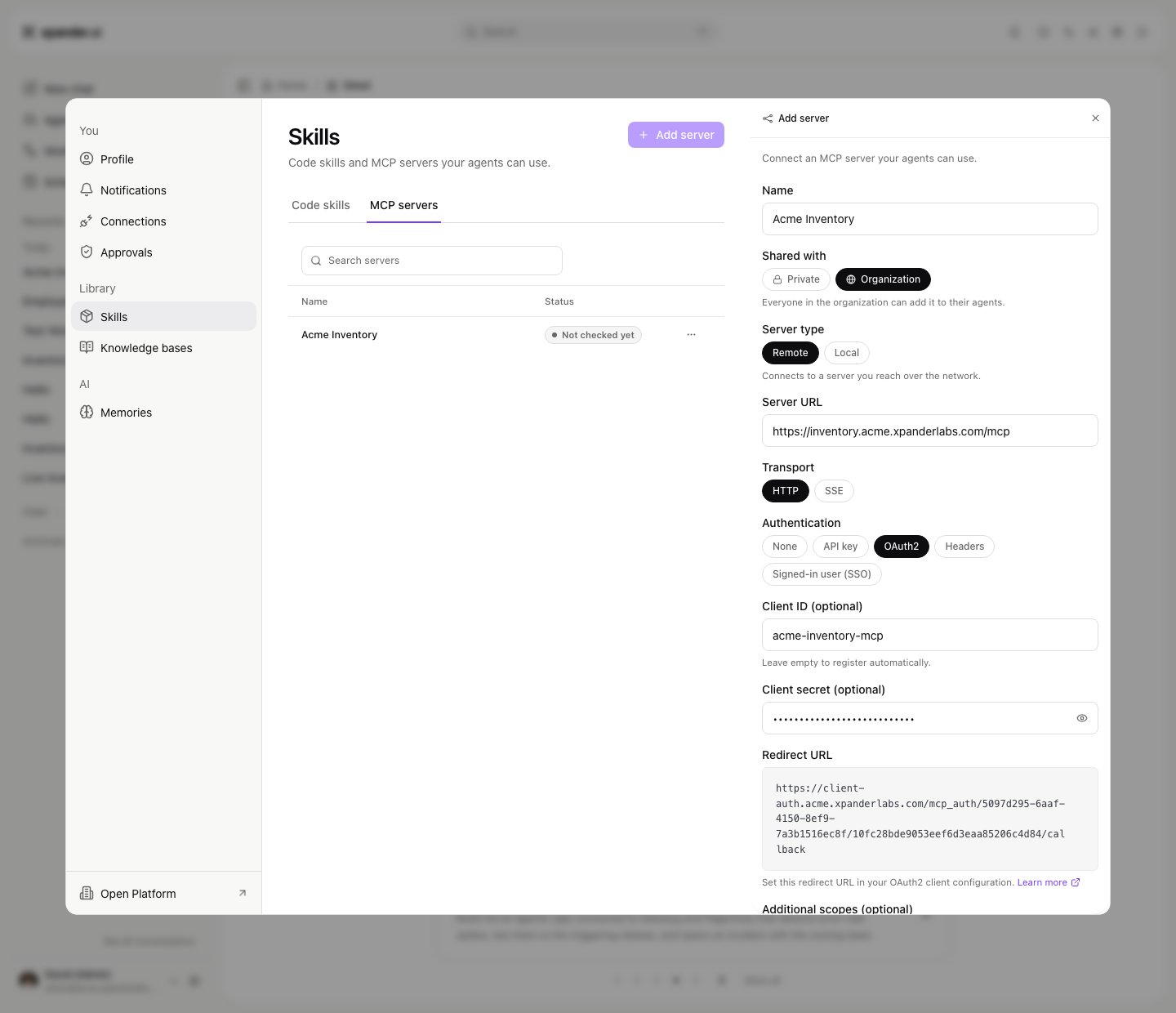
Add server with OAuth2. Shown with sample data.
5. Attach it to a shared agent
In the agent’s settings, Add skill, pick the entry (shown as Organization), and give the agent Org-wide access.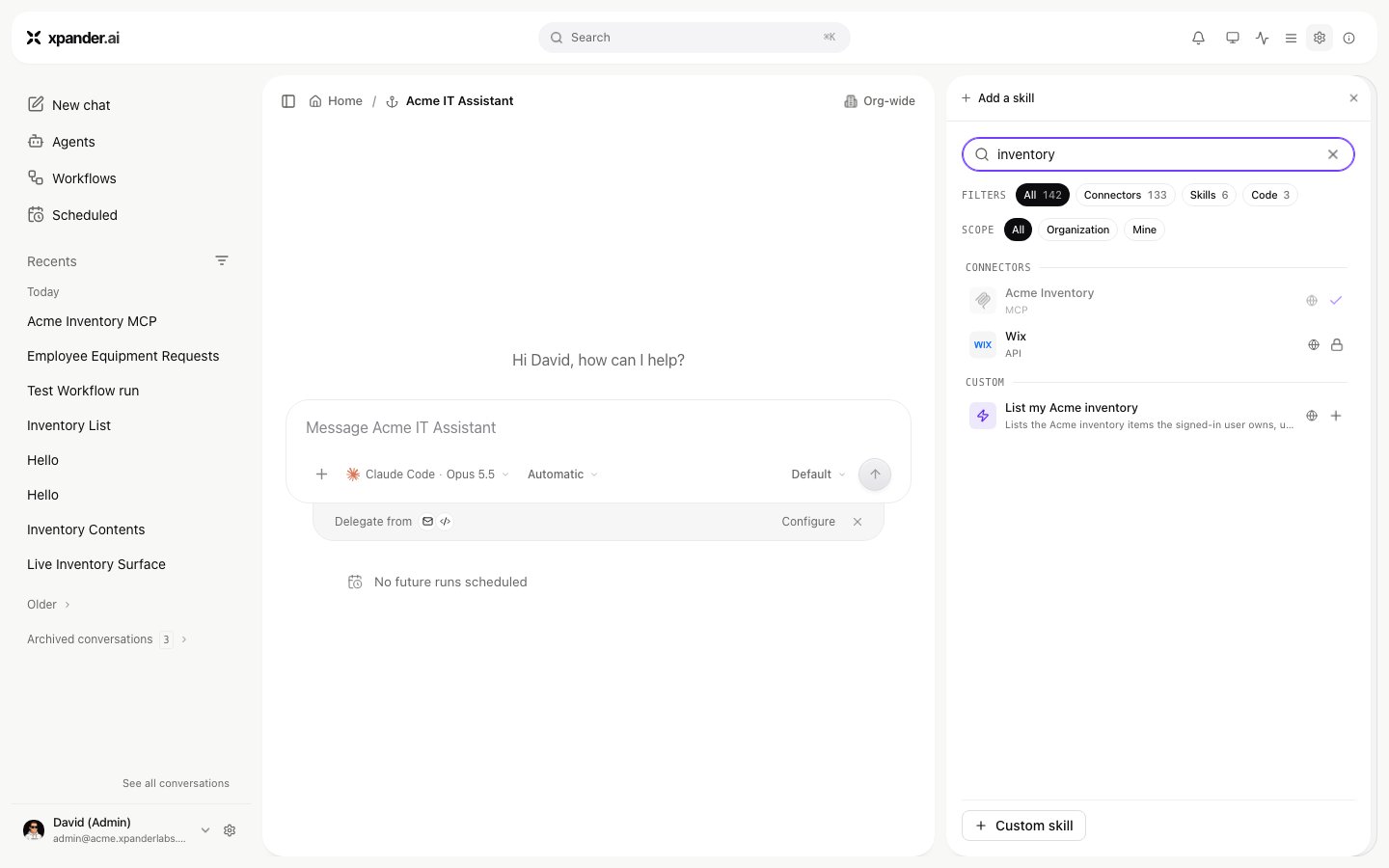
Add skill lists the organization entry. Shown with sample data.
What two people see
Alice and Bob ask the same agent “What equipment do I have?”. Each signs in once, then gets only their own equipment.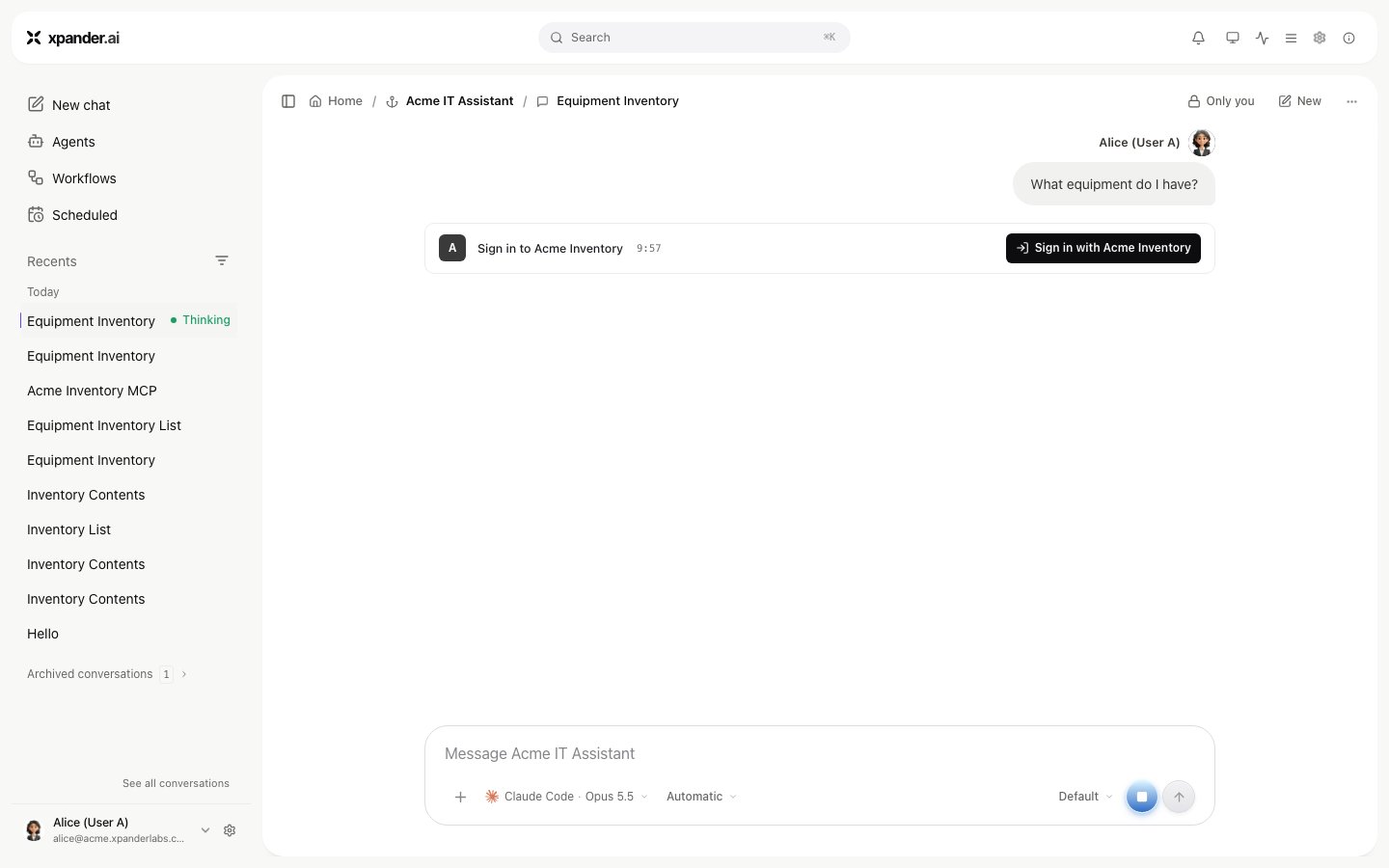
Alice's first prompt: sign in once. Shown with sample data.
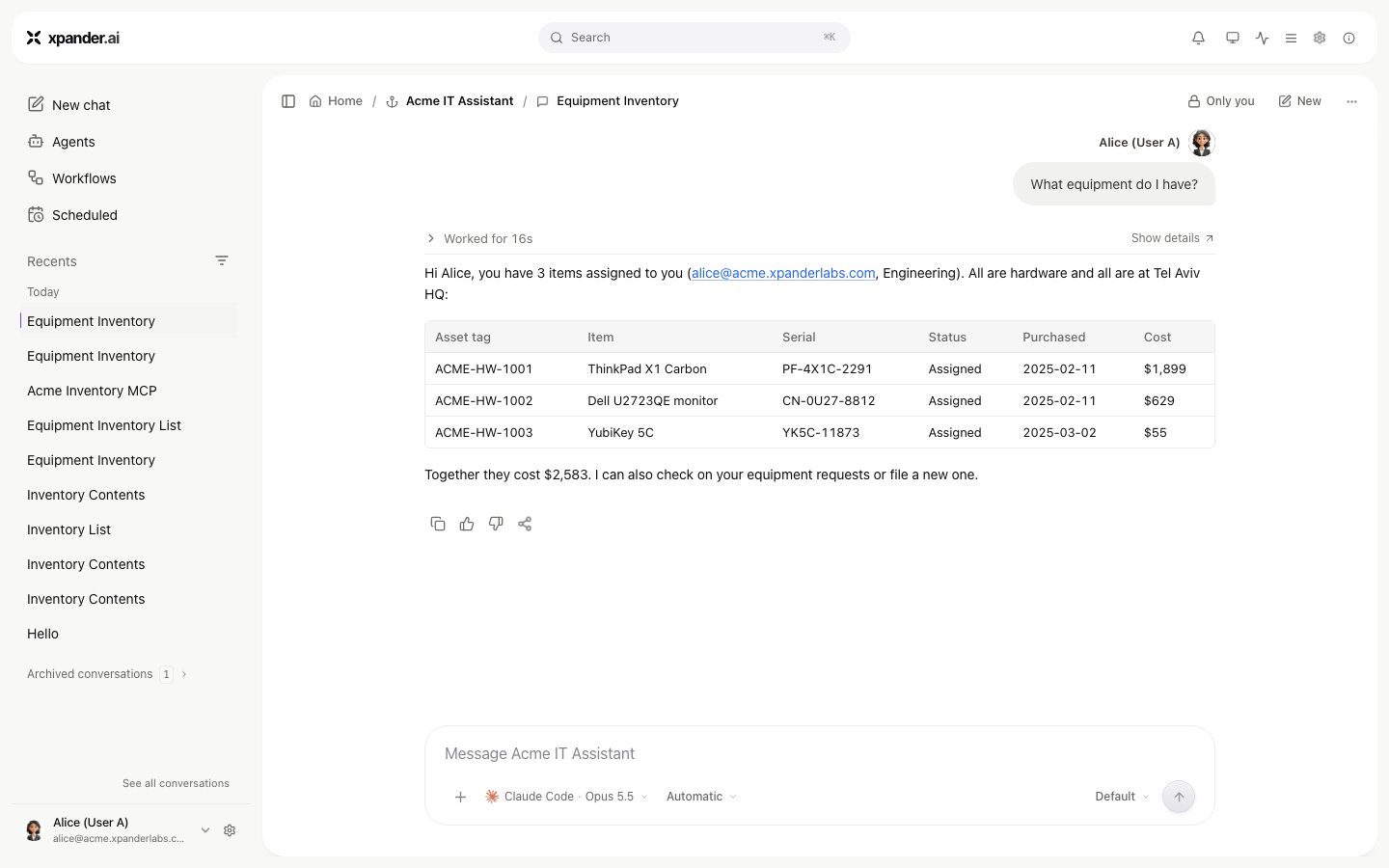
Alice gets her equipment. Shown with sample data.
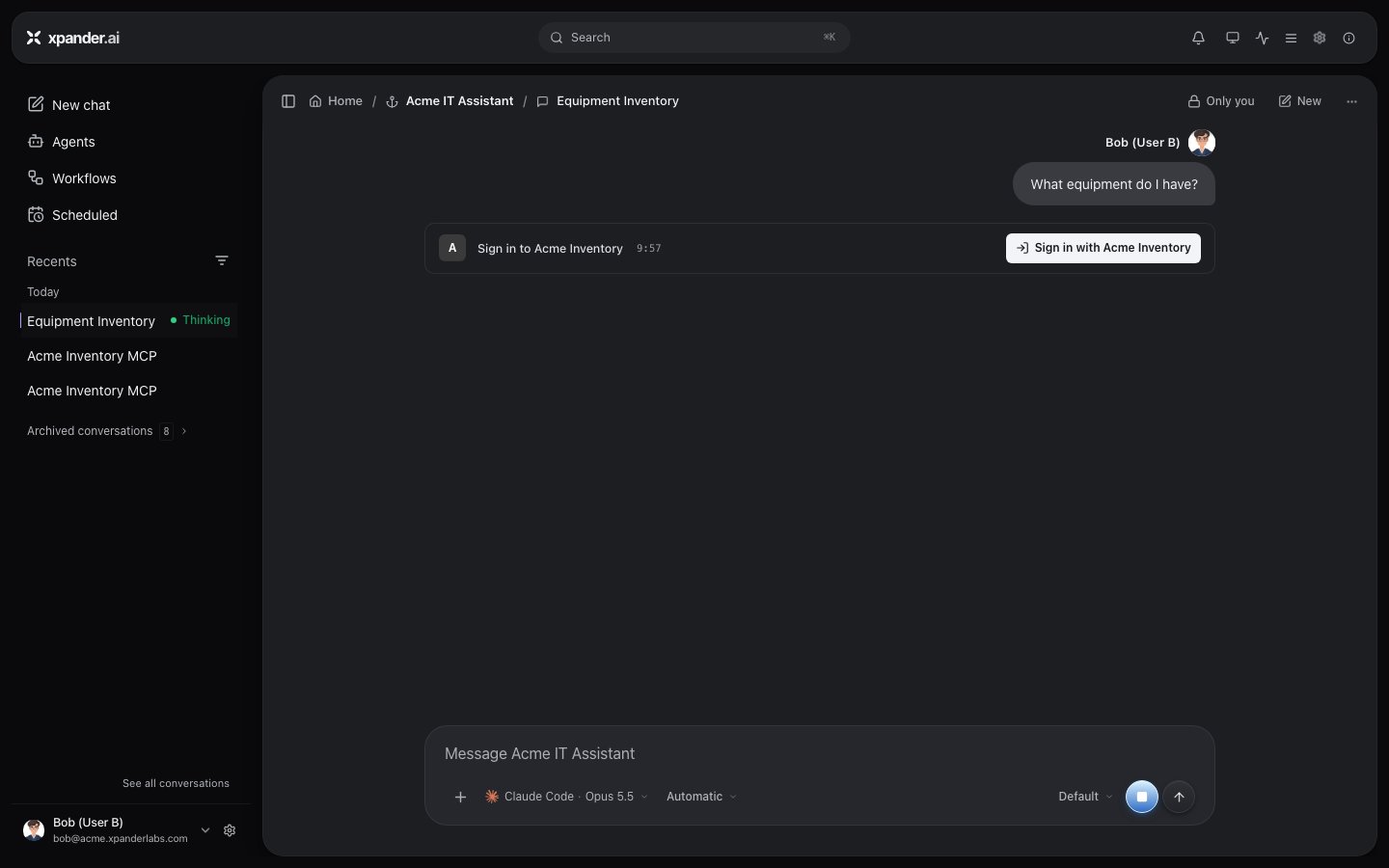
Bob's first prompt on the same agent: his own sign-in. Shown with sample data.
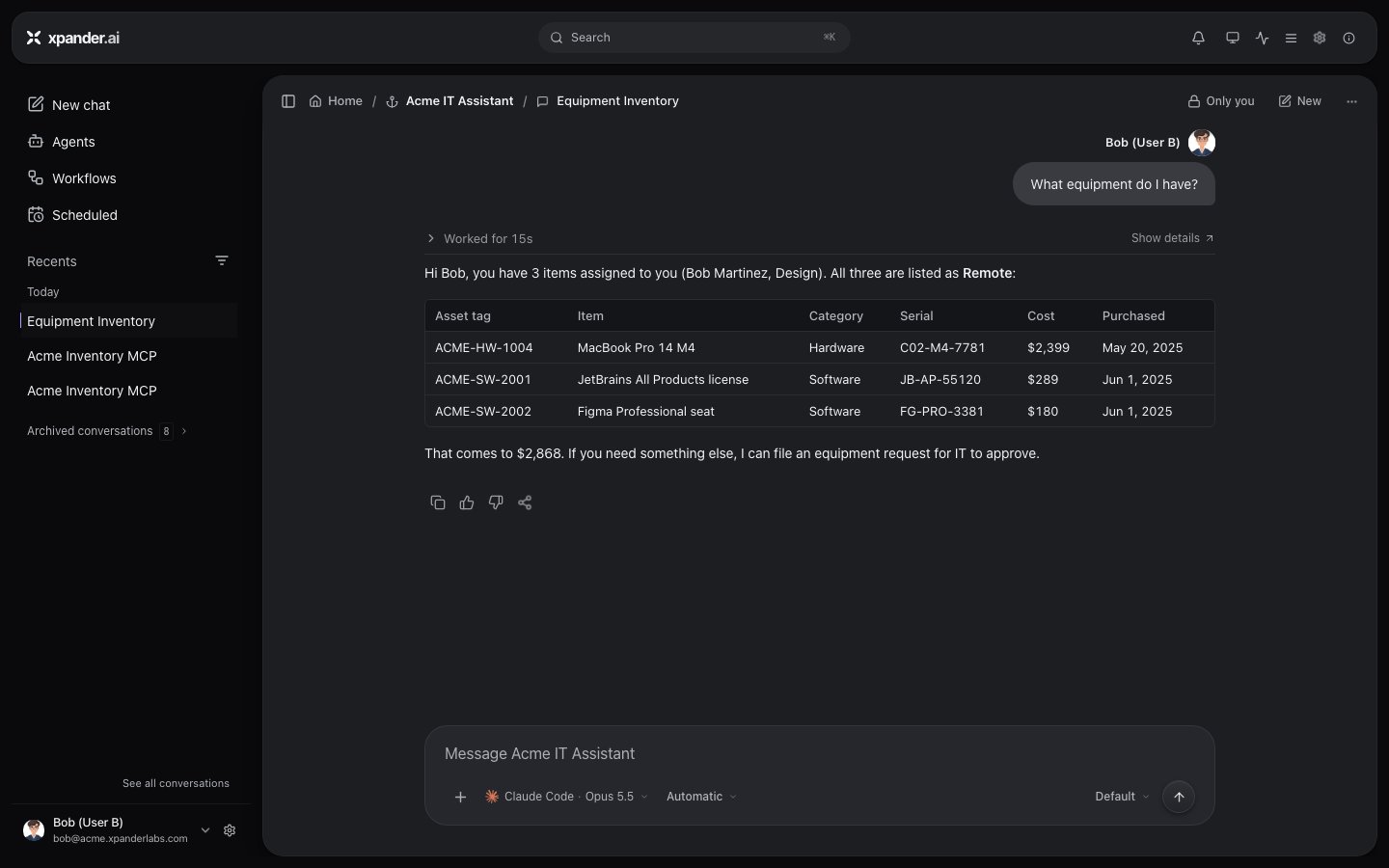
Bob gets his equipment, not Alice's. Shown with sample data.
Limits
- Runs nobody started. A schedule, a webhook, or a Slack, Teams or email message from a non-member has no person to sign in. The call uses the agent’s Default background user (agent settings, Skills > Advanced) or the server’s User for background runs, who must have signed in once. With none set, the call is refused. See What an unattended run may use. A message from a member runs as that member.
- Who can read the answers. An answer fetched with a person’s token stays in their conversation. On an Org-wide agent, every member can open that conversation, and the creator can on any agent. For owner-only data, share the agent with named people instead. See Permissions.
Disconnect a sign-in
Settings > Connections > Sign-ins lists every app and MCP server you signed in to. Use the row’s Disconnect, or Disconnect all in the table’s header menu. Pasted credentials stay. xpander deletes its copy of the token but does not revoke it at your identity provider. End your session there to revoke it. The next request shows the Sign in to card again.If it fails
Next steps
Register MCP endpoints
Where skills are added.
Choose whose credential an agent uses
Agent and conversation permissions.
Set a user for background runs
Unattended runs.