

Connect the workspace
1
Start from an agent
Open any agent’s Channels pane. Under Slack channels, click Connect Slack (admins only). Platform > Agents > Channels opens in a new tab.
2
Connect Slack
Click Connect Slack, review the permissions in the Slack window, and click Allow.
3
Done
The workspace shows as connected. Members can DM the app right away.
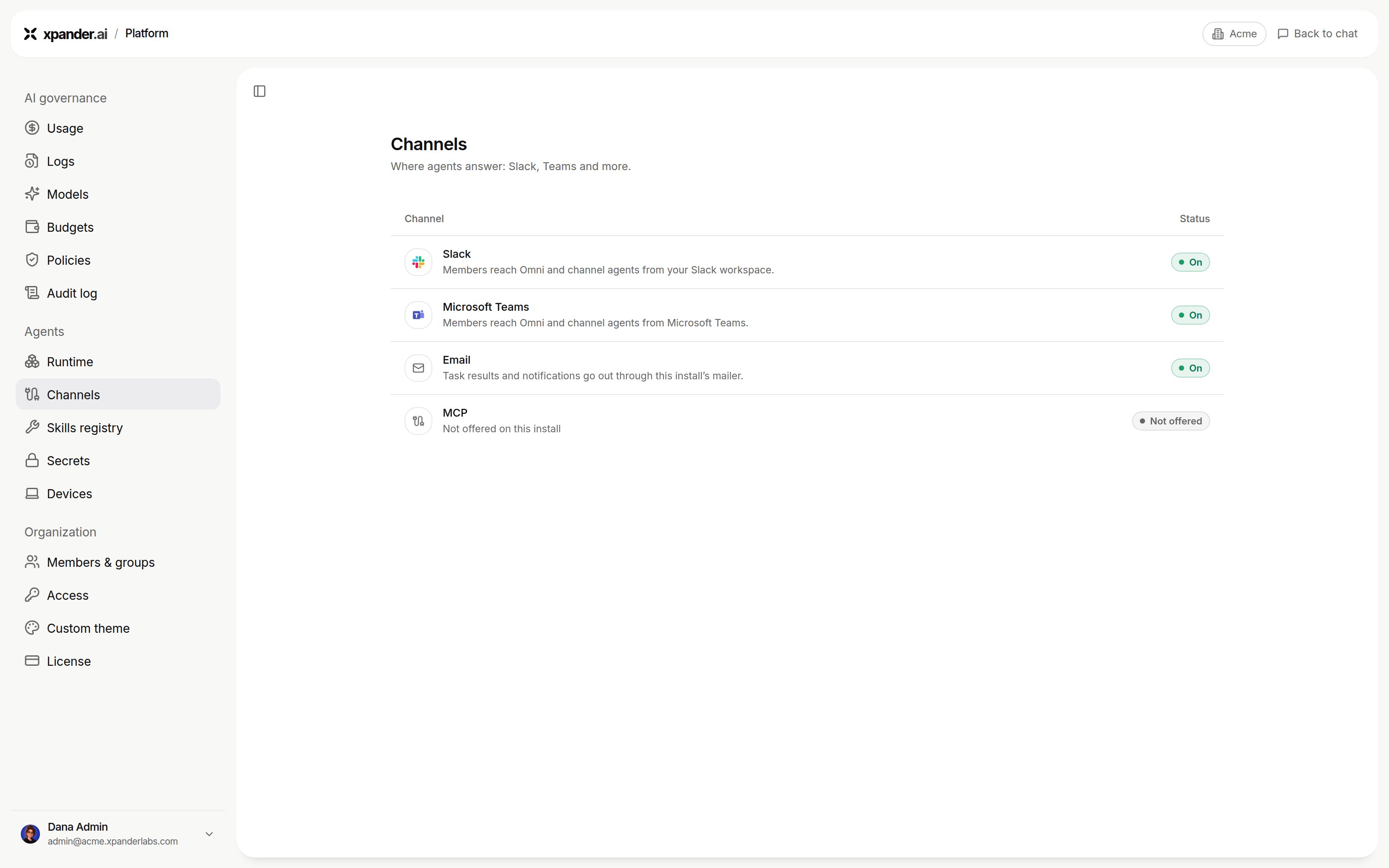
Platform > Agents > Channels on an Air-Gapped install: Slack, Microsoft Teams and Email are on, and MCP is not offered. Shown with sample data.
Disconnect the workspace
Disconnect in xpander, or remove the app in Slack (Settings & administration → Manage apps → xpander → Remove App). Either way, the app leaves everyone’s sidebar, past DMs follow Slack’s retention, and xpander keeps the channel routing. Reconnecting the same workspace restores it.Workspace-wide settings
On Platform > Agents > Channels, click a channel to open it. On for everyone turns it on or off. Off pauses the channel and keeps conversations. xpander cloud lists WhatsApp, Slack, Microsoft Teams and Telegram. A self-hosted install lists Slack, Microsoft Teams, Email (once a mailer is set) and MCP (when MCP is offered). The Slack entry holds the workspace-wide Slack behavior options and every channel routed to an agent. Show detailed tool activity turns the step list on for every channel, and a channel row can override it. User groups decide who configures which channel sections under Triggers. Changes are logged in Platform > AI governance > Audit log asOrg Channels Updated.
Authorize handle management
A handle such as@account-research lets people pick an agent from Slack’s mention picker. It needs a one-time authorization by an xpander organization admin whose Slack account can create, edit and deactivate user groups. It is separate from connecting the app, and needs a paid Slack plan.
1
Keep Slack group permissions restricted
Use a Slack admin account with user-group rights (Permissions → User Groups). Everyone else can stay restricted. See Slack’s group-management requirements.
2
Authorize from workspace settings
In Platform > Agents > Channels, Slack, select Authorize agent handles, confirm the connected workspace, and approve the user-group permission.
3
Return to xpander
The workspace shows Authorized. Agent owners can now create, rename and delete their agents’ handles, and organization admins can manage any agent’s handles.
Reauthorize when needed
If the authorizing account loses its rights or its grant is revoked, select Reauthorize. Until then, existing handles keep working, creating or renaming waits, and deleting removes the mapping at once (Slack cleanup waits).
Reconnecting or disconnecting clears handle authorization, so authorize again afterwards. Workspaces authorized before automatic setup existed need one more authorization too.
Next steps
Use agents in Slack
DMs, handles and channels.
Connect a Microsoft Teams tenant
The same for Microsoft 365.