

Tool; the filtered result is what agent.ainvoke_tool returns.
Configure an output schema
1
Open the action's settings
Open your agent in Xpander Chat, open its settings with the gear icon, and expand the skill on the Skills row. In the skill’s actions list, open the group and click Advanced on the action you want to filter. Long action names are cut short in this list. In the example, R… is Retrieve News Articles by Topic.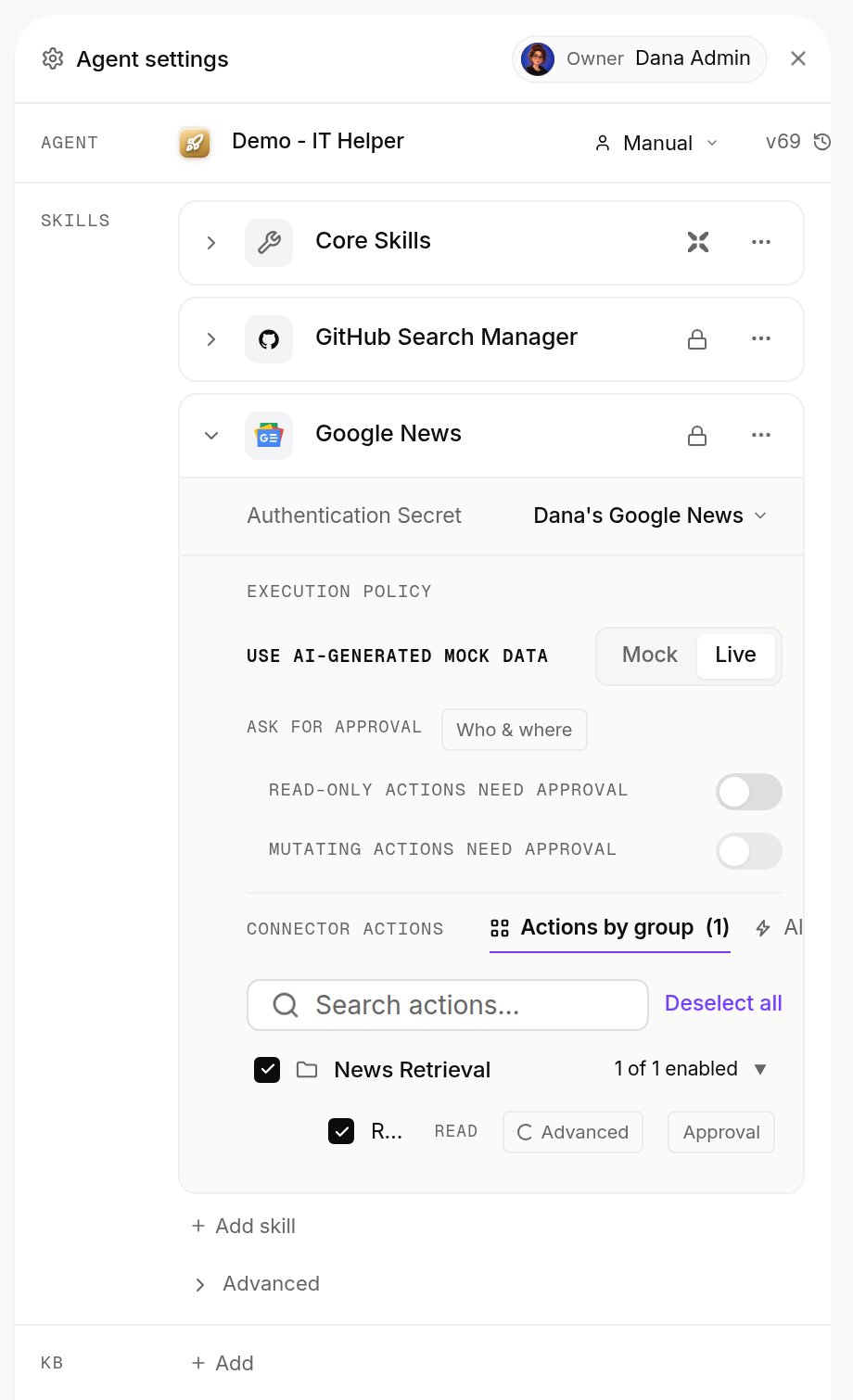
2
Open the Output filter tab
The action’s panel has two tabs, Input schema and Output filter. On Output filter, Response keys lists the top-level keys of a sample response: tick the keys to keep, and untick one to drop it with everything nested under it. What the agent sees shows the trimmed response and its size.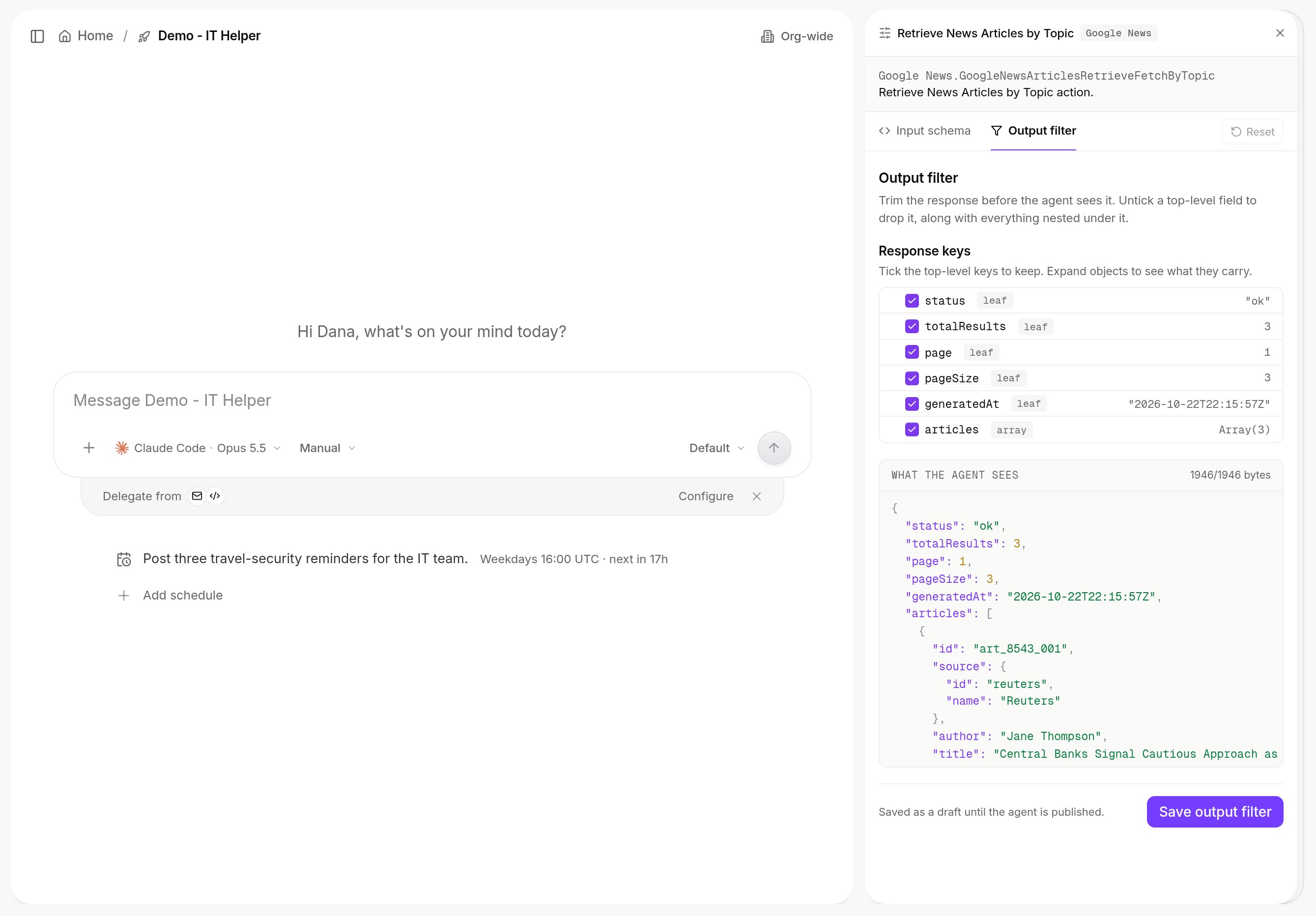
3
Save and publish
Click Save output filter; it is saved as a draft until the agent is published, then applies to every invocation from that point on, whichever agent loop runs the agent.
Verify the filtered shape from code
Once a schema is published, invoke the skill directly and inspect what the LLM actually receives:Troubleshooting
Schema is configured but the full payload still reaches the LLM
Schema is configured but the full payload still reaches the LLM
Output response filtering only applies to remote catalog skill calls, not local
@register_tool functions. Whatever you return from a Python function reaches the LLM verbatim. To slim a local skill’s output, do it inside the function before returning.The agent hallucinates values it used to read from the response
The agent hallucinates values it used to read from the response
The schema dropped a field the agent actually needed. Add it back and republish. Common case: stripping
created_at because it seems unnecessary, then a user asks “when did we onboard them?” and the agent guesses.A new field from the upstream vendor never reaches the agent
A new field from the upstream vendor never reaches the agent
Output schemas are allow-lists. If the upstream API adds a field, your schema silently drops it. When the vendor behind a skill announces an API update, re-check your schemas against a fresh captured response.
Filtering changed nothing, token usage is the same
Filtering changed nothing, token usage is the same
Either no schema is configured, the skill you filtered isn’t the one driving most tokens, or the response was already small. Use the run history to find which skill calls return the largest payloads and filter those first. List endpoints and search results are usually the biggest wins.
Next steps
Pre-built skills
The full reference for catalog skills, including the input-schema half of the Advanced tab.
Skill call hooks
Observe and log skill calls, including filtered responses, across the agent’s lifetime.
Custom skills
Add your own Python functions with
@register_tool. Output filtering does not apply to local skills.Knowledge bases
Indexed retrieval for grounding agents in your own corpus.