> ## Documentation Index
> Fetch the complete documentation index at: https://docs.xpander.ai/llms.txt
> Use this file to discover all available pages before exploring further.
# Testing & Chat
> Test your agent in the Agent Studio and debug its behavior before deploying
This page is being phased out. For the current way to interact with and test an agent, see [Build an Agentic App](/guides/omni/agentic-applications/build-your-first-agentic-application) in the User Guide.
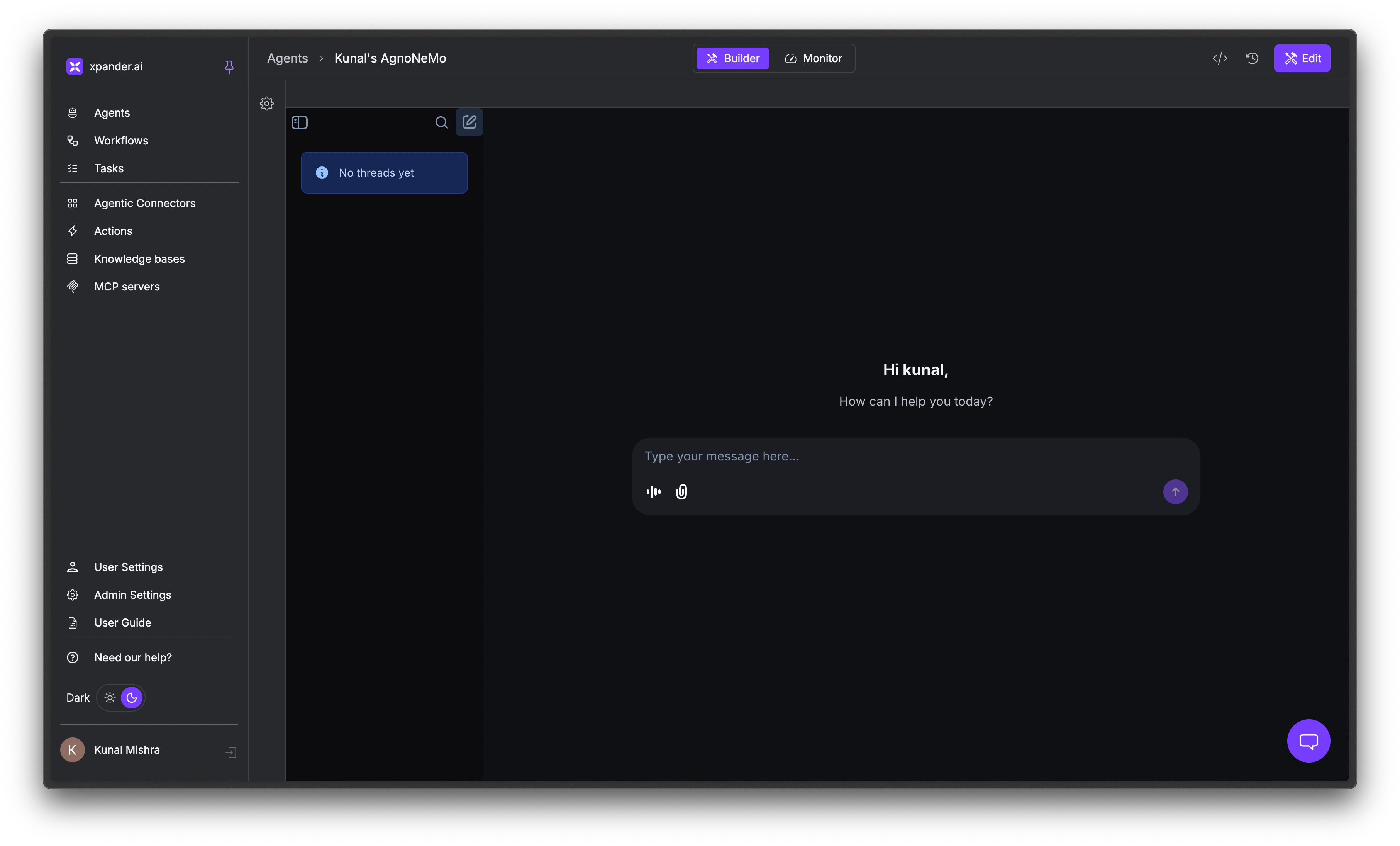
Before you deploy, run through the checklist below in the Agent Studio chat. Every feature you configured in the previous pages - instructions, tools, knowledge bases, memory, and model settings - should be verified here.
You don't need to publish to test. The chat always uses your latest **saved** configuration.
 ## Testing Checklist
Work through each section below. If something isn't working, check the linked configuration page for that feature.
### Instructions and Personality
*Your agent should sound like the persona you defined and stay within the boundaries you set.*
* **Basic behavior**: Send a few messages and check that the agent responds in the tone, style, and format you defined in your [Instructions](/guides/agents/agent-configuration#instructions).
* **Boundaries**: Ask the agent to do something your instructions explicitly forbid. It should decline or redirect - not comply.
* **Off-topic handling**: Ask something completely unrelated to the agent's purpose. Verify it stays on topic or deflects the way you intended.
### Tool Usage
*Your agent should pick the right tool for the request and pass sensible parameters.*
* **Trigger each tool**: For every tool you [attached](/guides/agents/tools-connectors#add-tools-to-your-agent), send a message that should trigger it. Verify the agent picks the correct tool.
* **Inspect the tool call**: Click on the tool call in the chat to expand it. Check the tool name, input parameters, raw output, and execution time. This tells you whether a problem is with tool selection, the parameters the agent chose, or the tool itself.
* **Tool dependencies**: If you set up [dependencies](/guides/agents/tools-connectors#tool-dependencies), try to trigger the downstream tool directly. The agent should call the prerequisite tool first.
* **Ambiguous requests**: Send a message that could match multiple tools. Verify the agent picks the right one. If it doesn't, add tool-specific instructions or reduce the number of enabled tools.
### Knowledge Base Retrieval
*Your agent should answer from your documents when relevant and admit ignorance when they don't cover the question.*
* **Answerable questions**: Ask questions your [Knowledge Base](/guides/agents/knowledge-bases) documents should cover. Verify the agent's answers are accurate and grounded in your content.
* **Unanswerable questions**: Ask something your documents don't cover. The agent should say it doesn't know - not hallucinate an answer.
* **Edge cases**: Ask questions that are partially covered or use different phrasing than your documents. If results are poor, adjust the similarity threshold or Top K in your [Knowledge Base settings](/guides/agents/knowledge-bases#tuning-relevance).
### Memory
*Your agent should remember what you told it earlier, both in this conversation and across new ones.*
* **Within a thread**: Tell the agent a fact ("My timezone is EST") and reference it later in the same conversation. It should remember.
* **Across threads**: Start a new thread and check if [User Memories](/guides/agents/memory-state#user-memories) persist. If they don't, verify that User Memories are enabled and that `user_id` is consistent.
* **Agent memories**: If you enabled [Agent Memories](/guides/agents/memory-state#agent-memories), verify the agent stores and recalls organizational knowledge across users and threads.
### Multimodal Input
*Your agent should read and reason over files you attach alongside your message.*
* **Upload supported files**: Send a PDF, image, or audio file and verify the agent processes it correctly.
* **Combine text and files**: Send a message with both text and an attachment. Verify the agent uses both in its response.
* **Unsupported files**: Upload a file type the agent shouldn't handle. Verify it responds gracefully instead of failing silently.
### Planning and Reasoning
*Your agent should break complex tasks into steps and produce deeper answers on hard questions.*
* **Planning mode**: If you enabled the [Checklist Toolkit](/guides/agents/ai-models-intelligence#planning-mode), give the agent a multi-step task. Verify it creates a plan and executes steps in order. Check the Monitor tab's **Tasks** view to see the execution plan.
* **Reasoning mode**: If you enabled the [Reasoning Toolkit](/guides/agents/ai-models-intelligence#reasoning-mode), ask a question that requires careful analysis. The agent should produce more thorough, well-structured answers than it would without reasoning enabled.
## Set up Error Notifications
Get alerted when your agent completes a task or encounters an error.
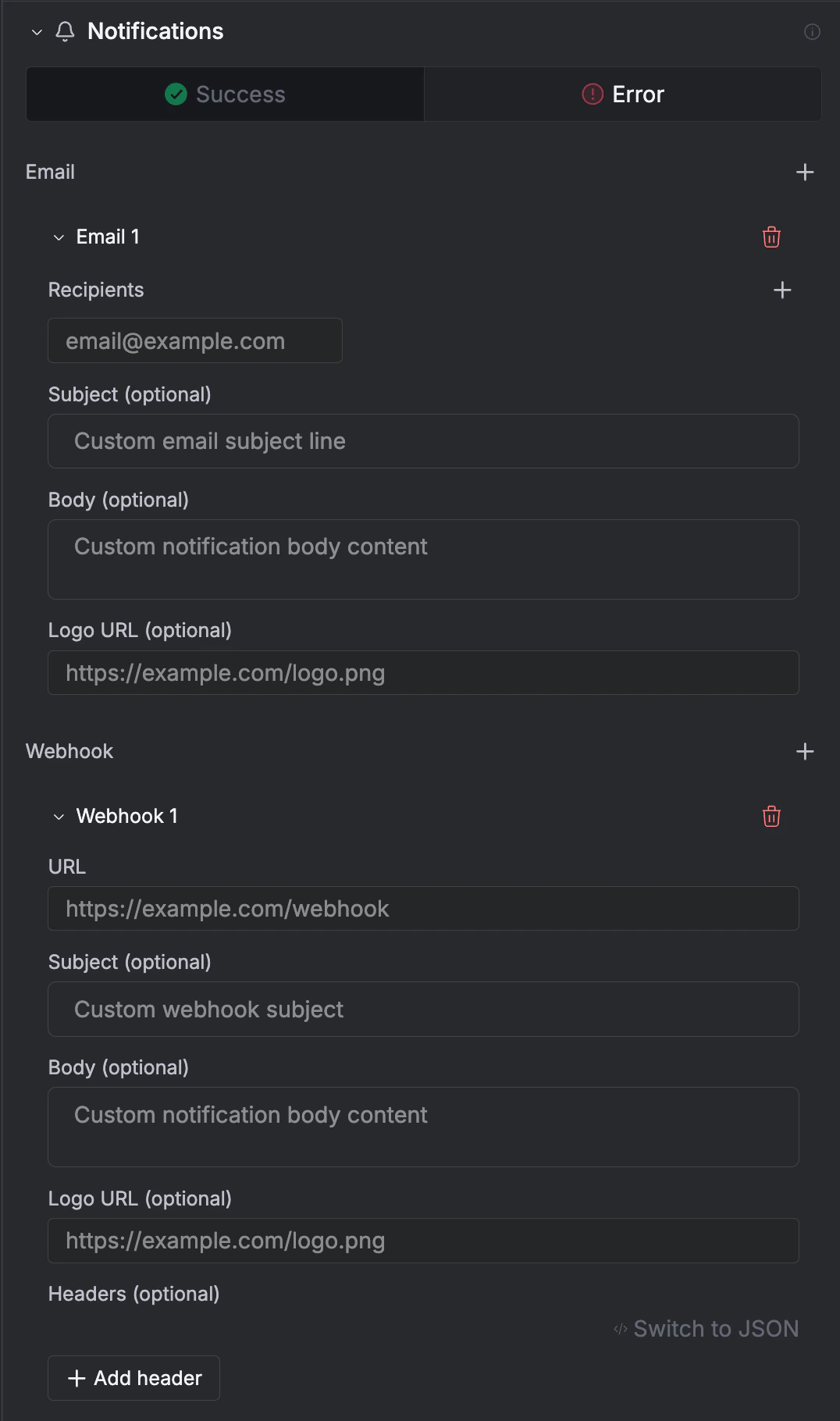
In the Agent Studio **General** tab, expand the **Notifications** section.
Notifications are split into two tabs: **Success** and **Error**. Configure them independently - you might want email on errors but webhook on success.
Click + next to **Email** or **Webhook** to add a notification channel.
* **Email**: Add recipient addresses, and optionally customize the subject line, body, and logo URL.
* **Webhook**: Enter a URL to receive a POST payload. Optionally customize the subject, body, logo URL, and add custom headers (or switch to raw JSON).
## Testing Checklist
Work through each section below. If something isn't working, check the linked configuration page for that feature.
### Instructions and Personality
*Your agent should sound like the persona you defined and stay within the boundaries you set.*
* **Basic behavior**: Send a few messages and check that the agent responds in the tone, style, and format you defined in your [Instructions](/guides/agents/agent-configuration#instructions).
* **Boundaries**: Ask the agent to do something your instructions explicitly forbid. It should decline or redirect - not comply.
* **Off-topic handling**: Ask something completely unrelated to the agent's purpose. Verify it stays on topic or deflects the way you intended.
### Tool Usage
*Your agent should pick the right tool for the request and pass sensible parameters.*
* **Trigger each tool**: For every tool you [attached](/guides/agents/tools-connectors#add-tools-to-your-agent), send a message that should trigger it. Verify the agent picks the correct tool.
* **Inspect the tool call**: Click on the tool call in the chat to expand it. Check the tool name, input parameters, raw output, and execution time. This tells you whether a problem is with tool selection, the parameters the agent chose, or the tool itself.
* **Tool dependencies**: If you set up [dependencies](/guides/agents/tools-connectors#tool-dependencies), try to trigger the downstream tool directly. The agent should call the prerequisite tool first.
* **Ambiguous requests**: Send a message that could match multiple tools. Verify the agent picks the right one. If it doesn't, add tool-specific instructions or reduce the number of enabled tools.
### Knowledge Base Retrieval
*Your agent should answer from your documents when relevant and admit ignorance when they don't cover the question.*
* **Answerable questions**: Ask questions your [Knowledge Base](/guides/agents/knowledge-bases) documents should cover. Verify the agent's answers are accurate and grounded in your content.
* **Unanswerable questions**: Ask something your documents don't cover. The agent should say it doesn't know - not hallucinate an answer.
* **Edge cases**: Ask questions that are partially covered or use different phrasing than your documents. If results are poor, adjust the similarity threshold or Top K in your [Knowledge Base settings](/guides/agents/knowledge-bases#tuning-relevance).
### Memory
*Your agent should remember what you told it earlier, both in this conversation and across new ones.*
* **Within a thread**: Tell the agent a fact ("My timezone is EST") and reference it later in the same conversation. It should remember.
* **Across threads**: Start a new thread and check if [User Memories](/guides/agents/memory-state#user-memories) persist. If they don't, verify that User Memories are enabled and that `user_id` is consistent.
* **Agent memories**: If you enabled [Agent Memories](/guides/agents/memory-state#agent-memories), verify the agent stores and recalls organizational knowledge across users and threads.
### Multimodal Input
*Your agent should read and reason over files you attach alongside your message.*
* **Upload supported files**: Send a PDF, image, or audio file and verify the agent processes it correctly.
* **Combine text and files**: Send a message with both text and an attachment. Verify the agent uses both in its response.
* **Unsupported files**: Upload a file type the agent shouldn't handle. Verify it responds gracefully instead of failing silently.
### Planning and Reasoning
*Your agent should break complex tasks into steps and produce deeper answers on hard questions.*
* **Planning mode**: If you enabled the [Checklist Toolkit](/guides/agents/ai-models-intelligence#planning-mode), give the agent a multi-step task. Verify it creates a plan and executes steps in order. Check the Monitor tab's **Tasks** view to see the execution plan.
* **Reasoning mode**: If you enabled the [Reasoning Toolkit](/guides/agents/ai-models-intelligence#reasoning-mode), ask a question that requires careful analysis. The agent should produce more thorough, well-structured answers than it would without reasoning enabled.
## Set up Error Notifications
Get alerted when your agent completes a task or encounters an error.
In the Agent Studio **General** tab, expand the **Notifications** section.
Notifications are split into two tabs: **Success** and **Error**. Configure them independently - you might want email on errors but webhook on success.
Click + next to **Email** or **Webhook** to add a notification channel.
* **Email**: Add recipient addresses, and optionally customize the subject line, body, and logo URL.
* **Webhook**: Enter a URL to receive a POST payload. Optionally customize the subject, body, logo URL, and add custom headers (or switch to raw JSON).
 ## Next Steps
Publish and connect to Slack, API, SDK, and more
Full overview of all Agent Studio settings
## Next Steps
Publish and connect to Slack, API, SDK, and more
Full overview of all Agent Studio settings